How to password protect a PDF
- Choose a PDF. Tap Choose a PDF or drop the file on the box.
- Type the password twice. Enter at least 4 characters in New password, then the same in Repeat password.
- Pick limits (optional). Tick Block printing, Block copying text or Block editing if you need them.
- Protect PDF and download. Press Protect PDF, then tap the download button to save yourfile-protected.pdf. If you ticked a limit, write down the owner password shown in the result.
What does Protect PDF do?
Protect PDF encrypts your document with AES-256 and a password you choose. Anyone who opens the protected copy must type that password first; without it the pages cannot be read. Optionally you can also block printing, copying text or editing.
The whole job runs in your browser. Your file and your password stay on your phone or computer, and the finished copy is saved as yourfile-protected.pdf next to the original, which is left as it was.
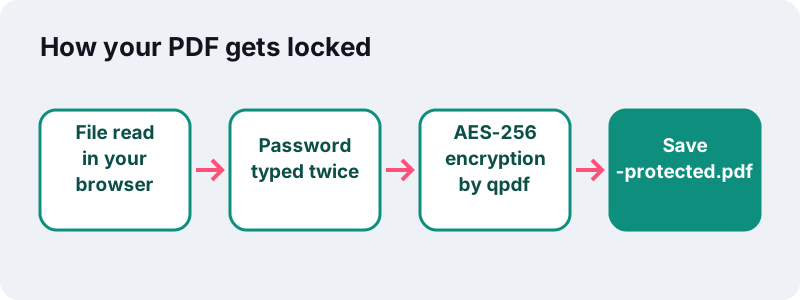
How do you password protect a PDF in four steps?
Choose the file, type a password twice, pick any limits and press the button. It takes well under a second on a normal document.
- Tap Choose a PDF or drop the file onto the box. One file at a time.
- Type your password in New password and again in Repeat password. It needs at least 4 characters, and both boxes must match.
- If you want, tick Block printing, Block copying text or Block editing.
- Press Protect PDF. A short line says Encrypting with AES-256…, then tap the download button.
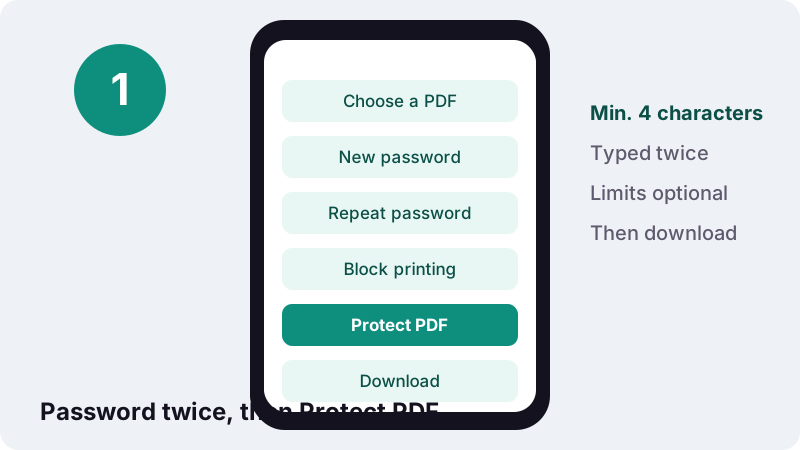
If the PDF already has a password, the tool tells you to unlock it first. Remove the old password with Unlock PDF, then protect the clean copy with the new one.
How strong is AES-256 encryption?
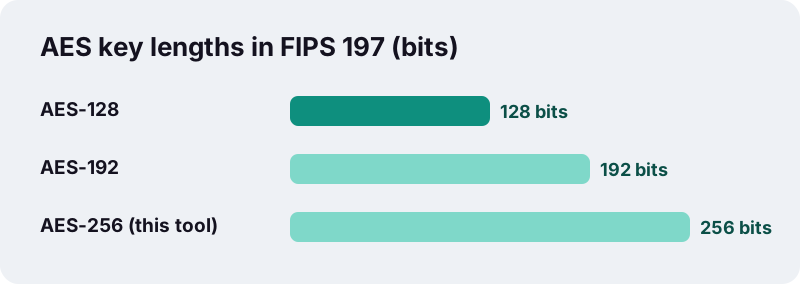
AES-256 is the longest-key version of the Advanced Encryption Standard, the cipher published by the US National Institute of Standards and Technology. With a good password, the encrypted pages cannot be read in any practical way without that password.
“Three members of the Rijndael family are specified in this Standard: AES-128, AES-192, and AES-256. Each of them transforms data in blocks of 128 bits, and the numerical suffix indicates the bit length of the associated cryptographic keys.”
The PDF format itself has moved the same way: the current version of the standard, PDF 2.0, defines 256-bit AES as its encryption method. The Library of Congress format notes add that many encryption methods from earlier PDF versions are now deprecated; this tool writes AES-256 only.
How do you choose a good password for a protected PDF?
Length matters most. The encryption is only as hard to break as the password is to guess, so a long phrase beats a short word with symbols. The tool accepts 4 characters, but that minimum is meant for convenience, not for sensitive files.
US digital identity guidance (NIST SP 800-63B) asks for user-chosen passwords of at least 8 characters, says systems should allow at least 64, and advises against forcing mixtures of character types. A phrase of several random words is easy to type and hard to guess.
| Password | Verdict |
|---|---|
| 1234 | Accepted, but guessed in moments |
| Johnson1985 | Weak: a name and a year people can find |
| kettle orbit paper lantern | Good: long and random words |
| A sentence only you would write, 20+ characters | Good |
| The same password you use for email | Avoid: one leak opens both |
- Use a different password for each file you send to a different person.
- Keep it in a password manager, not in the same folder as the PDF.
- Send it through another channel than the file: a call, an SMS or a chat.
What do Block printing, Block copying text and Block editing do?
They set permission flags that tell PDF readers what the person who opened the file may do. Tick none, one or all three; the open password is set either way.
| Option | What it asks reader apps to refuse |
|---|---|
| Block printing | Printing the document |
| Block copying text | Selecting and copying text and images out of the pages |
| Block editing | Changing pages, adding comments, filling form fields and inserting, deleting or rotating pages |
Why the limits get a second, separate password
PDF security has two passwords: the open (user) password and the owner password that guards the limits. If both were the same, anyone you gave the open password to could also lift the limits. So when you tick a limit, the tool creates a random 18-character owner password and shows it once in the result message.
Copy that owner password somewhere safe if you may want to remove the limits later. It is not stored anywhere else, so once you close the page it cannot be shown again.
How far can you trust print and copy limits?
Treat them as a polite request, not a lock. The limits depend on the reader app choosing to obey them, and the PDF format itself says so.
“These restrictions depend on the reader software to obey them, so the security they provide is limited.”
The open password is different: it is real encryption, and without it the content stays scrambled. So when you protect PDF files that contain private data, rely on the password, and use the limits only to discourage casual printing or copying by people you already trust with the content.
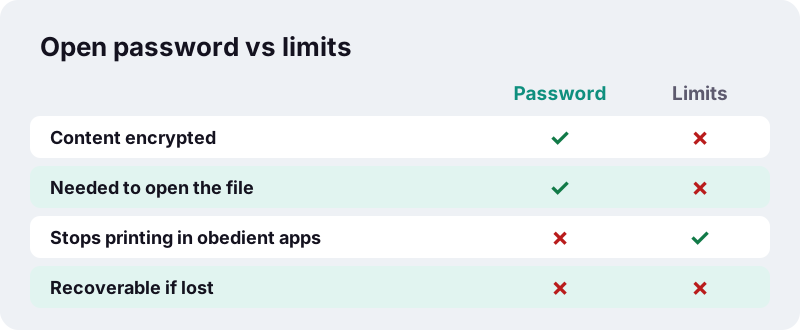
What happens if you forget the password?
The file cannot be opened. There is no reset link, no master key and no recovery service, here or anywhere else; that is exactly what makes the encryption worth using.
Big software makers say the same about their own password features. Microsoft states that in Word a password-protected document cannot be recovered if the password is lost or forgotten, and that it offers no service to retrieve such documents.
- Keep the unprotected original in a safe place, so a forgotten password costs you nothing.
- Store the password in a password manager the moment you set it.
- Write down the owner password from the result message if you ticked any limit.
Why password protect PDF files in your browser?
Because the file you want to lock is, by definition, one you do not want strangers to read, and here it is encrypted before it ever leaves your device. Nothing is uploaded: the PDF, the password and the result stay in your browser.
Browsers read a file you pick through the File API, which MDN describes as letting web applications read the contents of files on the user's computer. The encryption is done by qpdf, a free PDF library, compiled to WebAssembly so it runs inside the page at close to native speed.
- No account, no email address asked.
- The password is not logged or stored; closing the tab forgets it.
- The result line ends with 0 bytes uploaded.
- Read what the site collects on the privacy page.
Many online PDF services upload your file to their servers to process it, which means an unencrypted copy travels over the network. Encrypting locally avoids that step altogether.
Does protecting a PDF change its size or quality?
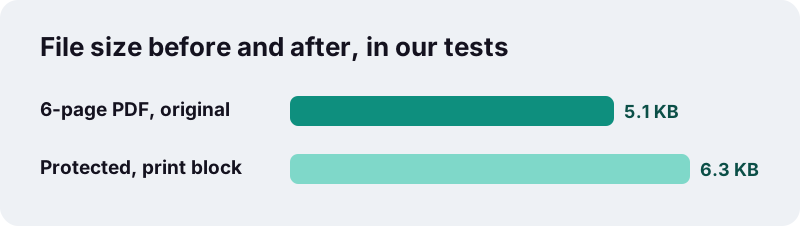
No change in quality: pages, text, images and links are copied as they are and only encrypted. The size grows a little, mostly by the encryption data the file now carries.
In our tests a 6-page text PDF of 5.1 KB, protected with a password and Block printing, became 6.3 KB and took 0.1 s. The result opened only after typing the password.
If you need a small file for email, run Compress PDF first and protect the compressed copy afterwards. Encrypted files cannot be compressed by our tools, because they cannot read the pages without the password.
Which other ways can you password protect a PDF?
Desktop programs can do it too, usually while saving or exporting. Our tool is useful when you are on a phone, on a shared computer, or the PDF came from somewhere else.
| Method | Where | What it offers |
|---|---|---|
| Protect PDF (this page) | Any browser, phone or computer | AES-256, optional print, copy and edit limits |
| Preview | Mac | File > Export > Permissions: open password and owner password |
| Word, Save as PDF | Windows, Microsoft 365 | Options: Encrypt the document with a password |
Apple's Preview guide describes ticking Require Password To Open Document in the Permissions panel. Microsoft's guide describes an Encrypt the document with a password option when Word saves as PDF. Both only work on that computer.
Can you protect PDF files on iPhone, Android and a computer?
Yes. Protect PDF runs in any current browser, so the same steps work on a phone, a tablet, a laptop or a shared office computer. Nothing to install, and nothing left behind on a borrowed machine except the file you download.
| Device | Pick the file from | The protected copy is saved to |
|---|---|---|
| iPhone / iPad (Safari) | Files app, Mail attachment | Files → Downloads |
| Android (Chrome) | Downloads, Gmail attachment | Downloads folder |
| Windows (Chrome, Edge, Firefox) | Downloads, Documents | Downloads folder |
| Mac (Safari, Chrome) | Downloads, Desktop | Downloads folder |
On a shared computer, delete the unprotected original and the downloaded copy from the Downloads folder once you have sent the file, and close the tab so the password typed in the page is gone too.
A quick test before you send
Open the downloaded copy once yourself. The reader should ask for the password before showing any page. Type it to check it works, and only then send the file and, separately, the password.
When should you protect PDF documents before sending them?
Whenever the file holds personal or financial data and travels by email, chat or a shared drive. Messages get forwarded, inboxes get hacked and laptops get lost; an encrypted attachment stays closed in all those cases.
Common cases to password protect PDF files
- Payslips, tax returns and bank statements sent to an accountant.
- Copies of ID cards or passports sent for a rental or a job.
- Medical reports shared with a family member.
- Signed contracts that include addresses and account numbers.
- Exam papers or results before their release date.
For files where only part of the content is sensitive, consider removing that part instead. Redact PDF deletes an account number for good, and the rest of the document can then be shared freely.
How do you remove the protection later?
Open the file in Unlock PDF, type the open password and download the unlocked copy. Files that only carry limits are unlocked without a password.
If the protected file ever refuses to open even with the right password, it may have been damaged in transfer. Ask for a fresh copy, or try Repair PDF after unlocking a copy that still opens.
Frequently asked questions
Is it free to protect a PDF here?
Yes. No account, no watermark and no limit on how many files you protect.
Which encryption is used?
AES with a 256-bit key, the encryption defined for PDF 2.0. The work is done by qpdf running in your browser.
How long must the password be?
At least 4 characters, typed twice. For anything sensitive use a much longer password, such as a phrase of several random words.
Can I recover the PDF if I forget the password?
No. Nobody can recover it, including us: the password is never sent anywhere. Keep the original or store the password in a password manager.
What is the owner password shown after protecting?
When you tick Block printing, copying or editing, the tool creates a random owner password that guards those limits. It is shown once; save it if you may want to lift the limits later.
Can people still print a PDF with Block printing?
Not reliably. The limit only works in reader apps that choose to obey it, and Wikipedia notes that most free and open-source PDF readers ignore such permission flags. Only the open password truly protects the content.
Is my file uploaded?
No. The PDF is read and encrypted on your device, and the result line confirms 0 bytes uploaded.
Can I protect a PDF that already has a password?
Unlock it first with Unlock PDF, then protect the unlocked copy with the new password.
Does it work on iPhone and Android?
Yes, in Safari on iPhone and iPad and in Chrome on Android. The protected copy goes to your Downloads folder.
Is ilovepdfe the same as iLovePDF?
No. ilovepdfe is an independent site, not affiliated with iLovePDF, which is a separate company. The practical difference is that ilovepdfe processes your files in your browser instead of uploading them.
Sources
- FIPS 197, Advanced Encryption Standard (AES) — NIST
- Advanced Encryption Standard — Wikipedia
- PDF: Encryption and signatures — Wikipedia
- NIST SP 800-63B, Digital Identity Guidelines: Authentication — NIST
- Password-protect a PDF in Preview on Mac — Apple Support
- Save or convert to PDF or XPS in Office desktop apps — Microsoft Support
- You cannot recover a document that is protected with a password if the password is lost in Word — Microsoft Support
- File API — MDN Web Docs
- QPDF — Wikipedia
- PDF, Version 1.7 (ISO 32000-1:2008) — Library of Congress