How to fill a PDF form
- Choose a PDF. Tap Choose a PDF or drop the form on the box. The tool reads the fields and says how many it found.
- Fill in the fields. Type in the text boxes, tick the checkboxes and choose from the menus.
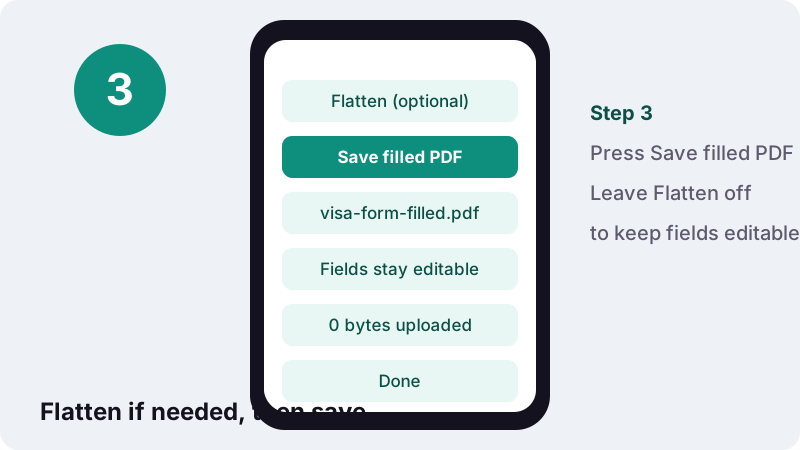
- Choose Flatten or not. Leave Flatten off to keep the fields editable, or tick it to fix the answers into the page.
- Save filled PDF. Press Save filled PDF and download the copy ending in -filled.pdf.
Fill PDF forms in three steps
To fill PDF forms here, choose the file, type your answers into the list of fields that appears, and press Save filled PDF. A copy ending in -filled.pdf downloads with your answers inside the real form fields, so they show up in any PDF reader.
No account, no trial and no watermark. The tool runs inside your browser tab: it opens the PDF on your phone or computer, writes your answers into the form and saves the new file there, without sending the form anywhere.
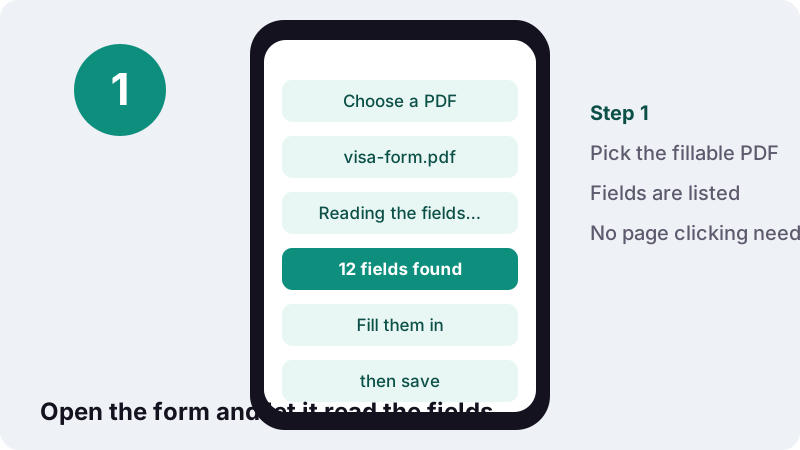
As soon as the file opens, the page says Reading the form fields… and then how many it found, for example 12 fields found. Fill them in, then save. If it finds none, it tells you so and points you to the right tool instead.
How do I fill PDF form fields?
Choose the PDF, wait for the field list, then type in the text boxes, tick the checkboxes and pick options from the menus. Decide whether to flatten, press Save filled PDF and download the result. The whole job takes as long as typing your answers.
- Tap Choose a PDF, or drop the form onto the box on a computer.
- Wait for the message that says how many fields were found.
- Fill each field: type in text boxes, tick checkboxes, choose from drop-down menus.
- Tick Flatten only if the answers must be fixed into the page (see below).
- Press Save filled PDF and download the copy ending in
-filled.pdf. - Open it once in your usual PDF viewer to check that every answer is where you expect.
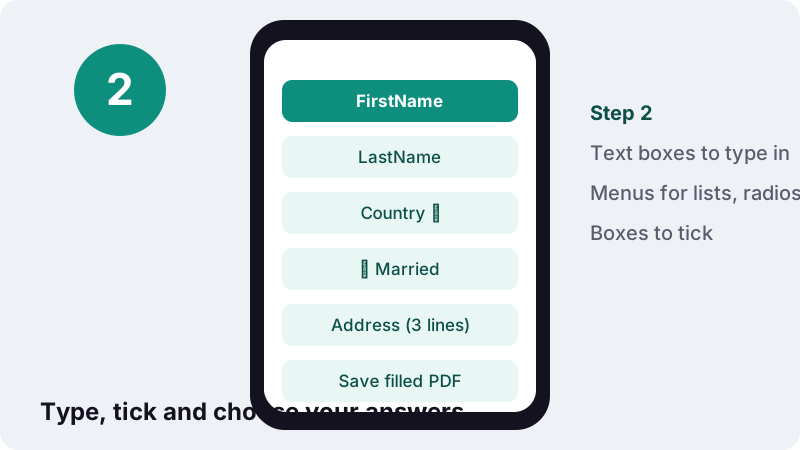
Fields are listed by the names the form designer gave them, such as FirstName or Text7, in the order they are stored in the file. When a name is unclear, keep the PDF open in another tab or app to see which box on the page it belongs to.
Which kinds of fields can I fill?
All the common ones: single-line text, multi-line text, checkboxes, drop-down menus, list boxes and option (radio) buttons. Push buttons and digital-signature fields are skipped, because they do not hold an answer you can type.
| Field in the PDF | How it appears here | Example |
|---|---|---|
| Text field | A one-line text box | Name, date of birth, passport number |
| Multi-line text field | A larger box with several lines | Address, reason for travel, comments |
| Checkbox | A box to tick | I agree, Married, Has a driving licence |
| Drop-down (combo box) | A menu with the form's own choices | Country, title, month |
| List box | A menu with the form's own choices | Department, course option |
| Radio buttons | A menu with one option per button | Yes / No, Male / Female / Other |
| Read-only field | Shown greyed out, left as it is | Reference numbers filled by the issuer |
Each menu starts with a dash, which means no answer. Choosing the dash on a field that already had a value clears it, which is handy when you are reusing an old filled-in copy.
Can I fill PDF form fields on a phone?
Yes. The fields appear as normal phone inputs, with the phone's own keyboard and menus, which is often easier than tapping tiny boxes on a zoomed page. It works in Safari on iPhone and iPad and in Chrome or other browsers on Android.
- Getting the file: save the form from your email or the website to Files (iPhone) or Downloads (Android) first, then pick it here.
- Typing: autocorrect may change names and codes; check passport and reference numbers after typing.
- Long forms: the list scrolls; your answers are kept while you scroll up and down.
- Saving: the filled copy goes to the browser's downloads, ready to attach to an email or upload.
Flatten or keep the fields editable?
Leave Flatten off if the recipient's software needs to read the fields, or if you may change an answer later. Tick it when the form should look final and nobody should be able to alter your answers by clicking into a box.
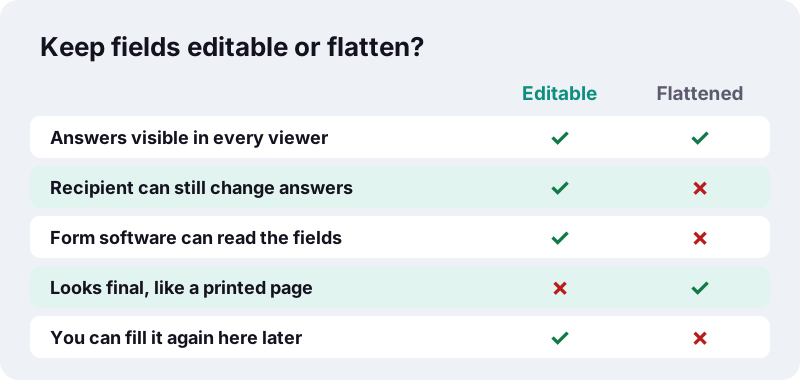
Flattening turns each answer into ordinary page content and removes the field. After saving, the result says Saved and flattened: the answers are now part of the page. Without flattening, it says Saved. The fields keep your answers and stay editable.
Not sure? Save twice: once editable, to keep for yourself, and once flattened, to send. If the form will go through an online portal that reads the data automatically, the editable copy is usually what they expect; when in doubt, follow the portal's instructions.
Answers in Russian, Greek, Vietnamese and other alphabets
Most forms come with fonts that only cover Western European letters. When an answer contains other characters, the tool embeds a Unicode font (Noto Sans) in the PDF so the letters display correctly in the fields, flattened or not.
That font adds size. In our tests on 2026-10-19 (headless Chrome on a Windows PC), a 1-page form with 5 fields saved at 9.3 KB with English answers in under 0.1 s. Filled in Russian and Vietnamese and flattened, it came out at 333 KB in 0.3 s, with the text shown correctly.
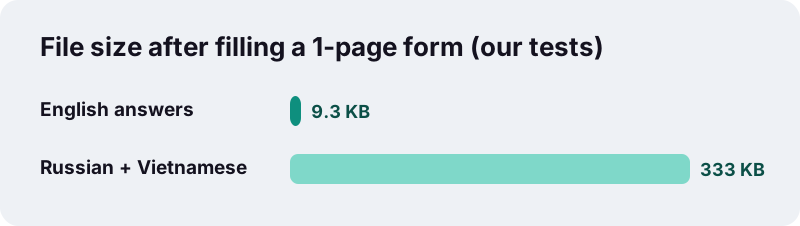
The embedded font covers Latin, Greek and Cyrillic alphabets, including Vietnamese accents. For answers in Arabic or Hebrew, type them on the page with Edit PDF, which lets the browser shape those scripts and places them as an image. If the larger file is a problem for an upload, try Compress PDF afterwards.
Why does my form say it has no fillable fields?
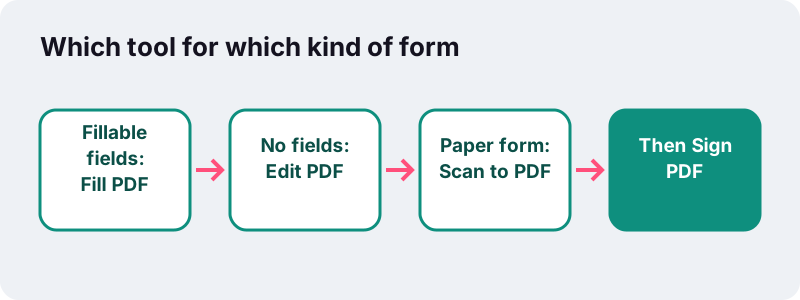
Because the PDF is a flat page: it looks like a form, with lines and boxes, but no interactive fields were built into it. Scanned paper forms and many forms exported straight from a word processor are like this. You can still answer it by typing on top of the page.
The tool says so plainly and sends you to Edit PDF, which lets you click anywhere and type. Apple gives the same advice for its Preview app on Mac:
“If a PDF won’t allow you to type directly into the form, you can add a text box instead.”
If the form only exists on paper, photograph it with Scan to PDF first, then type over it with Edit PDF. To make a scanned form's printed text searchable as well, run OCR PDF on it.
AcroForm and XFA: two kinds of PDF form
There are two technologies for forms inside PDFs. This tool fills the standard one, called AcroForm, which most fillable PDFs use. The other, XFA, is an older Adobe format that most PDF software, including this tool, cannot fill.
Wikipedia's PDF article notes that AcroForms were introduced in the PDF 1.2 format specification and are included in all later versions. XFA arrived with PDF 1.5:
“Adobe XFA Forms are not compatible with ISO 32000's AcroForms feature, and most PDF processors do not handle XFA content.”
| AcroForm | XFA | |
|---|---|---|
| Introduced | PDF 1.2 | PDF 1.5 |
| Part of the ISO standard | Yes | Referenced only, deprecated in PDF 2.0 |
| Fillable here | Yes | No, the tool shows an explanation |
What to do with an XFA form
If the tool says the file is an XFA form made with Adobe LiveCycle, it cannot fill those fields. Your options are to open it in Adobe's desktop Reader, which is the only program the form was designed for, or to type your answers over the page with Edit PDF.
These forms turn up most often from government agencies. Wikipedia's XFA article gives a well-known example:
“Immigration, Refugees and Citizenship Canada distributes many of its application forms as XFA PDFs, which must be downloaded and opened in Adobe Reader rather than a web browser or mobile device.”
Before typing over an XFA form, check the agency's instructions. Some of them read the data stored in the fields, so an answer typed on top of the page with Edit PDF will not reach their system even though it looks right on screen.
Is it safe to fill PDF forms with personal data here?
Forms carry the most sensitive data people put into PDFs: passport numbers, tax IDs, health details, bank accounts. Here that data never leaves your device. The browser reads the form you choose, fills it in memory and saves the copy locally; the result line shows 0 bytes uploaded.
That is how browsers are built to treat files. MDN, the reference for web developers, says the FileReader interface can only read files the user has explicitly selected, and cannot open anything else on the computer by itself.
If you send the filled form by email, consider adding a password with Protect PDF and sharing the password by another channel, such as a phone call or a text message.
After filling: sign, merge, shrink
Most forms need something else before they are sent. These steps come up again and again, in this order.
| Next step | Tool | Tip |
|---|---|---|
| Sign the last page | Sign PDF | Fill first, sign second, so the signature sits over the finished form |
| Attach a copy of your ID or diploma | Merge PDF | Put the form first, then the attachments |
| Meet an upload limit | Compress PDF | Lossless re-save first; image levels make text unsearchable |
| Protect personal data in transit | Protect PDF | AES-256 with a password you choose |
If a form arrives locked with a password, you need to remove it first with Unlock PDF, typing the password you were given; the tool cannot open protected files otherwise.
Problems and quick fixes
The messages on the page say what went wrong. Here they are with the fix.
| Message or symptom | Why | Fix |
|---|---|---|
| This PDF has no fillable fields | The form is a flat page | Use Edit PDF to type anywhere on it |
| This is an XFA form | Made with Adobe LiveCycle | Open it in Adobe Reader, or type over it with Edit PDF |
| This PDF is password-protected | The file needs a password to open | Unlock it first, then fill it |
| A field is greyed out | The form marks it read-only | It is left unchanged on purpose |
| Field names make no sense | The designer used names like Text7 | Match them to the page in another tab |
| Answer looks cut off | The box on the page is too small | Shorten the answer or use an abbreviation |
More tools for paperwork
Forms are rarely the only step. These tools also run in your browser and fit before or after filling.
Frequently asked questions
How do I fill a PDF form for free?
Open this page, choose the PDF, type your answers into the listed fields, tick boxes and pick from menus, then press Save filled PDF. It is free, needs no account and adds no watermark.
Why can't I type into my PDF form?
Either the PDF has no fillable fields, or it is an XFA form. The tool tells you which. For a flat form, use Edit PDF to type anywhere on the page.
Will the answers stay editable?
Yes, unless you tick Flatten. Without it, the answers stay in real form fields that you or the recipient can change. With it, they become part of the page.
Can I fill PDF forms on iPhone or Android?
Yes. The fields appear as normal phone inputs in Safari or Chrome. Save the form to Files or Downloads first, then choose it here.
Are my answers uploaded to a server?
No. The form is read and saved by your browser on your device. The result line shows 0 bytes uploaded.
Why is my filled form so much bigger?
If an answer uses letters outside Western European fonts, such as Cyrillic or Vietnamese, a Unicode font is embedded so they display correctly. In our tests that took a 1-page form to 333 KB.
Can I sign the form too?
Yes. Save the filled PDF, then open it in Sign PDF to draw, type or upload your signature and place it on the page.
Can it fill XFA forms made with Adobe LiveCycle?
No. XFA is a separate form format that most PDF software cannot fill. Open those in Adobe Reader, or type over the page with Edit PDF if the recipient accepts that.
Can I fill a scanned paper form?
A scan has no fields, so use Edit PDF to type on it. If you only have the paper, photograph it with Scan to PDF first.
Is ilovepdfe the same as iLovePDF?
No. ilovepdfe is an independent site and is not affiliated with iLovePDF, which is a separate company. The practical difference is that ilovepdfe processes your files in your browser instead of uploading them.
Sources
- PDF (section: Forms) — Wikipedia
- XFA — Wikipedia
- Fill out and sign PDF forms in Preview on Mac — Apple Support
- Annotate a PDF in Preview on Mac — Apple Support
- FileReader — MDN Web Docs (Mozilla)
- PDF (Portable Document Format) Family — Library of Congress