How to convert PDF to Word with ilovepdfe
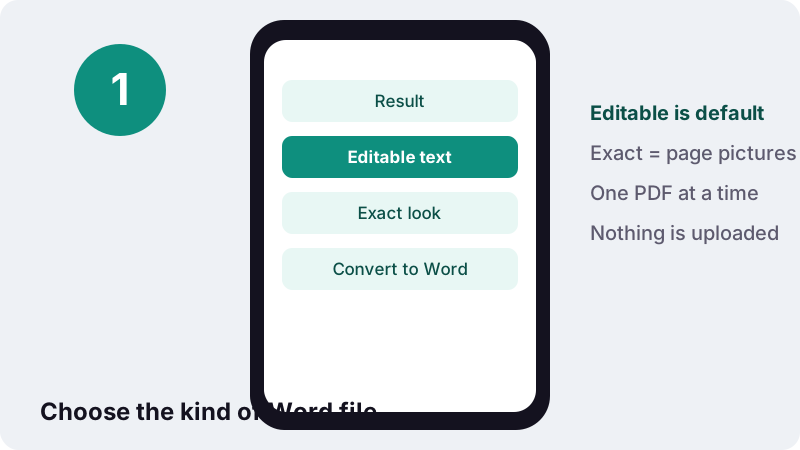
- Choose a PDF. Tap Choose a PDF, or drop one file on the box. It is opened on your device, not uploaded.
- Pick the result. Under Result, keep Editable text to change the wording, or choose Exact look (pages as pictures) to keep the appearance.
- Press Convert to Word. Press Convert to Word and wait while each page is read. Scanned pages are reported in the result message.
- Download the .docx. Download the Word file, open it, and check headings and tables before you edit or send it.
What does this PDF to Word converter do?
It reads the text inside your PDF and writes a new Word document (.docx) that you can open, type in and save again. This PDF to Word tool works inside the page you are looking at, so the file is processed by your own browser and is never sent to a server.
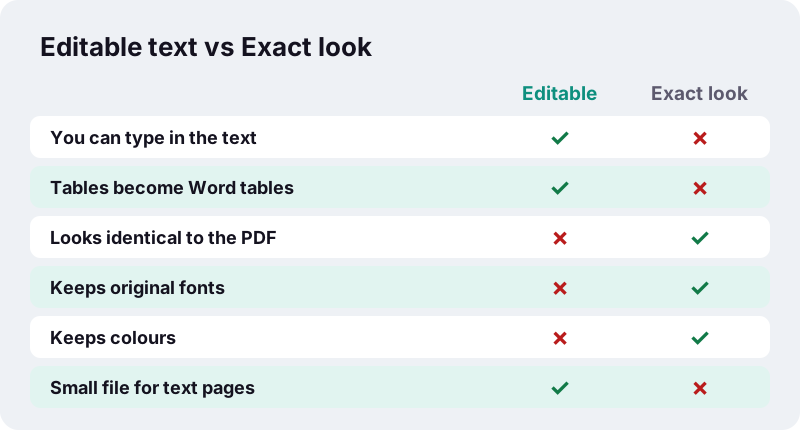
You pick one of two results. Editable text rebuilds paragraphs, headings, lists and tables so you can change the wording. Exact look turns every page into a picture inside Word, which keeps the appearance perfectly but does not let you edit the text.
There is no sign-up, no daily quota and no watermark added to the document. When the job ends, the page reports the time it took on your device and confirms that zero bytes were uploaded.
How do you convert PDF to Word here, step by step?
Four actions are enough: choose the PDF, pick the result type, press the button, download. The whole round trip for a short text document takes well under a second on a normal computer.
- Choose a PDF. Tap the button or drop one file on the box. Only one PDF is converted at a time.
- Pick the Result. Leave Editable text selected if you want to rewrite things, or switch to Exact look (pages as pictures) if appearance matters more.
- Press Convert to Word. A progress line shows each page being read.
- Download the .docx. The file keeps your PDF's name with the new extension. Open it in Word, LibreOffice, Google Docs or Pages and check the headings and tables.
If the PDF asks for a password when you open it, remove the password first with Unlock PDF, which needs the password you already know. Then come back and run the conversion.
Why is turning a PDF into Word harder than it looks?
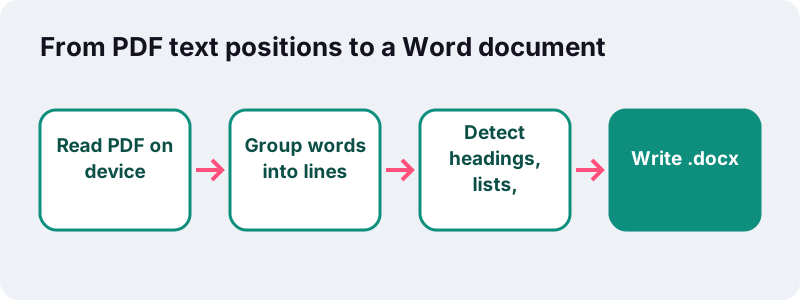
Because a PDF remembers where each piece of text sits on the page, not what that text is. A paragraph, a table cell and a caption all look the same inside the file: short runs of characters with coordinates. Any converter has to guess the structure back.
“PDF is a fixed file format, which means the file stores the location of text, pictures, and vector graphics on a page, but not necessarily the relationships among them. Most PDFs don’t include information about structural content elements, such as paragraphs, tables, or columns.”
That is why no converter, desktop or online, can promise a perfect copy of an arbitrary file. What matters is how sensible the guesses are and how honestly the tool tells you what it could not rebuild.
How does the Editable text mode rebuild a document?
It sorts every word by position, joins words that share a baseline into lines, and then joins lines into paragraphs when the gap between them is normal. Each rebuilt element becomes a native Word object, not a floating text box.
- Headings: lines set in clearly larger type than the body text become Word headings, so the Navigation pane works.
- Bold and italic: kept when the PDF's font is a bold or italic face.
- Lists: lines starting with a bullet, a dash or a number such as
1.ora)become bulleted or numbered list items. - Alignment: centred lines stay centred.
- Right-to-left text: Arabic, Hebrew or Persian paragraphs are written as right-to-left paragraphs.
- Tables: when two or more lines in a row split into three or more columns at the same positions, they become a real Word table.
Paragraph text ends up in Calibri, Word's familiar default, so the document looks consistent and is easy to restyle with Word's own styles.
Will tables come out as real tables in the PDF to DOCX file?
Yes, when the text is laid out in clear columns. The converter looks for lines that break into at least three columns at matching horizontal positions, on two or more consecutive lines, and writes them as a proper Word table with rows and cells.
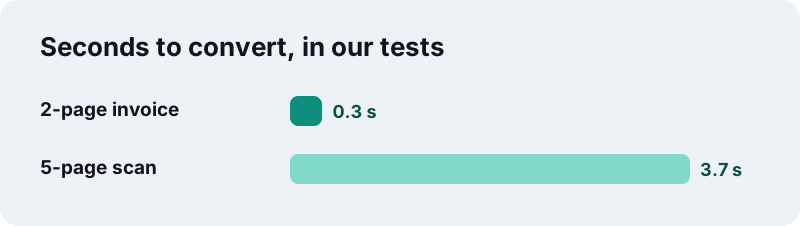
In our tests, a 2-page invoice of 2.4 KB became a 3.3 KB .docx in 0.3 seconds, with the title, the paragraphs and a real 4-column Word table for the line items. You could click into a cell, change a quantity and add a row like in any document.
Tables built from two columns only, or with text that wraps irregularly inside cells, may come out as tab-like paragraphs instead. If you need the numbers rather than the layout, PDF to Excel puts every column of text into spreadsheet cells.
Editable text or Exact look: which result should you pick?
Pick Editable text when you need to change words, reuse paragraphs or fill in a template. Pick Exact look when you only need the PDF inside a Word file, for example to add comments around it or to attach it to a report that must stay in .docx.
| Your goal | Best result | Why |
|---|---|---|
| Rewrite a contract clause | Editable text | Paragraphs become normal Word text |
| Update prices in a quote | Editable text | Line items become a Word table |
| Keep a certificate looking identical | Exact look | Each page is a picture, nothing shifts |
| Insert a brochure into a Word report | Exact look | Logos, colours and fonts stay as they are |
| Edit a scanned letter | Run OCR first | A scan has no text to rebuild |
You can run the same PDF twice, once in each mode, and keep both files. Nothing is stored, so trying both costs only a few seconds.
What happens with scanned PDFs?
A scan has no text inside it, only a photo of paper, so there is nothing to turn into paragraphs. The converter detects pages without a text layer, places them in Word as pictures, and the result message tells you how many pages were handled that way.
“A text document which is scanned to PDF without the text being recognised by optical character recognition (OCR) is an image, with no fonts or text properties.”
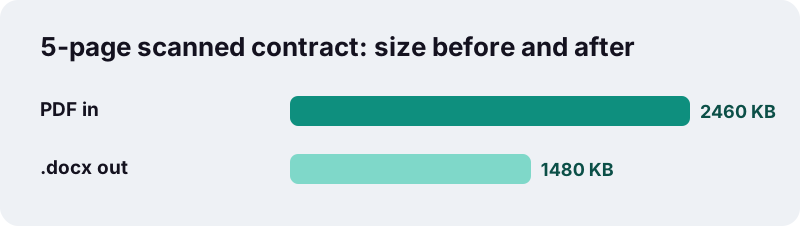
In our tests, a 5-page scanned contract of 2.46 MB became a 1.48 MB .docx in 3.7 seconds, with each page placed as a picture. To get typed text instead, run OCR PDF first: it adds a text layer, and the next conversion can rebuild real paragraphs from it.
What does the PDF to DOCX conversion not keep?
Some things are lost on purpose, because rebuilding them reliably from a PDF is not possible in a browser. Knowing them in advance saves you from surprises when the PDF to DOCX file opens.
| Element | What you get in Word |
|---|---|
| Original fonts | Calibri for all text |
| Text colours | Black text (colours are not kept) |
| Two or three newspaper-style columns | Normal paragraphs, one after another |
| Text boxes and sidebars | Normal paragraphs in reading order |
| Photos and logos on text pages | Not extracted |
| Pages that are scans | Pictures, with a message suggesting OCR |
If a page's images matter, convert that page with Exact look, or save the pictures separately with PDF to JPG and insert them into the Word file yourself.
Which kinds of PDF convert best?
Documents that were exported from a word processor convert best: letters, reports, contracts, CVs, invoices and course notes. They have one column of text, clear headings and tables drawn in neat columns, which is exactly what the rebuilding rules look for.
Microsoft makes the same point about its own converter: it works best with files that are mostly text, and a page made mostly of charts or graphics may arrive as a single image.
- Good: exported reports, letters, CVs, invoices, legal agreements.
- Fair: forms with many boxes, documents with footnotes, very long tables.
- Hard: magazine layouts, posters, slide decks, multi-column scientific papers.
- Needs OCR first: anything scanned or photographed.
Is it safe to convert PDF to Word in the browser?
Yes, because the file stays on your device. The page uses the browser's built-in file reading, which opens the document from your own storage, and all the converting is done by JavaScript running on your machine.
“The FileReader interface lets web applications asynchronously read the contents of files (or raw data buffers) stored on the user's computer, using File or Blob objects to specify the file or data to read.”
Many online PDF services upload your file to their servers to convert it. That can be a problem for pay slips, medical letters, tenancy contracts or anything covered by a confidentiality clause. Here, the done message ends with 0 bytes uploaded, and closing the tab removes the document from memory.
Can you use PDF to Word on a phone?
Yes. The converter runs in Safari, Chrome, Edge, Firefox and Samsung Internet on phones and tablets, with no app to install. The .docx lands in your Downloads or Files folder and opens in the Word app or any other editor.
| Device | Where the .docx goes | Open it with |
|---|---|---|
| iPhone / iPad | Files → Downloads | Word, Pages |
| Android | Downloads | Word, Google Docs |
| Windows | Downloads folder | Word, LibreOffice Writer |
| Mac | Downloads folder | Word, Pages, LibreOffice |
Phones have less memory than computers, so a long scanned PDF takes more time there. Text PDFs of a few dozen pages are usually quick on any recent phone.
How should you check the Word file after converting?
Spend one minute on a quick review before you send or print the document. The rebuilding is automatic, so a human glance catches the few places where a guess went wrong.
- Open the Navigation pane in Word and confirm the headings are the real section titles.
- Scroll through the tables and check that each value sits in the right column.
- Look for a list that became plain lines, and re-apply bullets if needed.
- Search for words split by a hyphen at the end of a line in the original.
- Apply your own style set: since all text is Calibri, one click restyles everything.
When you are done editing, turn the file back into a fixed document with Word to PDF, which writes real selectable text, so the new PDF stays searchable.
How can you see what changed between two versions?
Converting is often the first half of a round trip: PDF in, edits in Word, PDF out. If someone sends you back a revised PDF, you do not need to read both copies line by line.
Compare PDF puts the old and new files side by side and highlights words removed in red and words added in green, page by page. It compares text only, so it suits contracts, policies and reports that went through this kind of editing.
What are the conversion limits in numbers?
The tool converts one PDF per run and has no page cap or size cap of its own; the ceiling is your device's memory. The numbers below are the only ones we have measured, on a Windows PC in headless Chrome on 19 October 2026.
| Test file | Mode | Result | Time |
|---|---|---|---|
| 2-page invoice, 2.4 KB, text PDF | Editable text | 3.3 KB .docx, title, paragraphs, 4-column Word table | 0.3 s |
| 5-page scanned contract, 2.46 MB | Editable text | 1.48 MB .docx, pages placed as pictures | 3.7 s |
Times on your device will differ. A phone is usually slower than a desktop, and image-heavy scans take longer than text pages because every picture has to be decoded and re-saved.
Which tools help before and after converting?
These tools run the same way, in your browser, and handle the steps before and after a conversion: getting the text layer, trimming the pages you need, and sending the result.
- OCR PDF to give scanned pages a text layer before converting.
- Split PDF to convert only the chapter or pages you actually need.
- Edit PDF when you only need to add a line of text, not rewrite the document.
- Compress PDF after exporting your edited document back to PDF.
Frequently asked questions
Is this PDF to Word converter free?
Yes. There is no account, no trial, no watermark and no limit on the number of files you convert. Everything runs on your own device, so there is no server cost to pass on.
Is my PDF uploaded anywhere?
No. The file is read by your browser and converted by JavaScript on your device. The done message confirms 0 bytes uploaded, and the document disappears from memory when you close the tab.
Can I convert PDF to DOCX and keep the exact layout?
Choose Exact look (pages as pictures). Every page becomes a picture in Word, so it looks identical, but you cannot edit the words. For editable text, the layout is rebuilt and simplified.
Why can't I edit the text after converting?
Either you picked Exact look, or the page was a scan with no text layer. In the second case the result message says so; run OCR PDF first, then convert again with Editable text.
Does it keep my fonts and colours?
Not in Editable text mode: all text becomes Calibri and colours are not kept, so the document is easy to restyle. Exact look keeps both, because the pages are pictures.
Can it convert several PDFs at once?
No, one PDF per run. If you have many files, convert them one after another; each takes seconds. If they belong together, join the PDFs first with Merge PDF and convert the single file.
Does it work with Arabic, Hebrew or other right-to-left text?
Yes. Paragraphs in right-to-left scripts are written as right-to-left paragraphs in Word. As with any language, the PDF must contain real text, not a scan.
Can I open the result in Google Docs or LibreOffice?
.docx is an open, standardised format (ISO/IEC 29500), so Google Docs, LibreOffice Writer, Apple Pages and Word all open it.
What about password-protected PDFs?
A PDF that asks for a password to open cannot be read until the password is removed. Use Unlock PDF with the password you know, then convert. The tool does not crack unknown passwords.
Is ilovepdfe the same as iLovePDF?
No. ilovepdfe is an independent site and is not affiliated with iLovePDF, which is a separate company. The practical difference is that ilovepdfe converts your files in your browser instead of uploading them.
Sources
- Opening PDFs in Word — Microsoft Support
- PDF — Wikipedia
- FileReader — MDN Web Docs
- Using files from web applications — MDN Web Docs
- DOCX Transitional (Office Open XML), ISO 29500:2008-2016, ECMA-376 — Library of Congress
- PDF (Portable Document Format) Family — Library of Congress
- Office Open XML — Wikipedia
- Optical character recognition — Wikipedia