How to convert PDF to PowerPoint
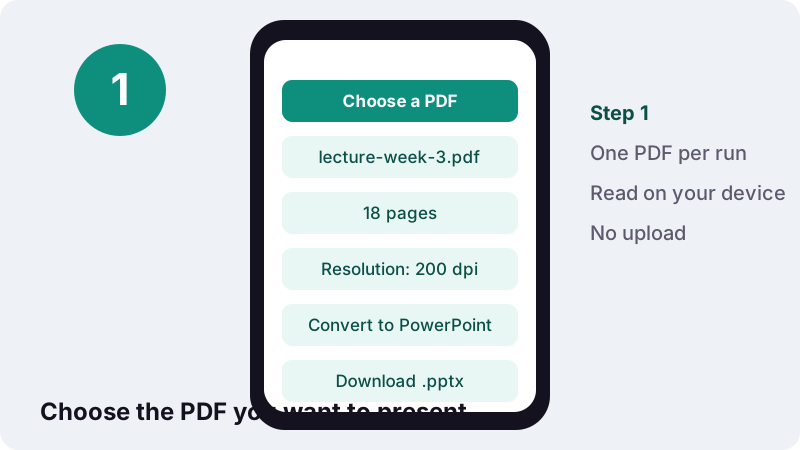
- Choose a PDF. Tap Choose a PDF and select the document, or drop it onto the box.
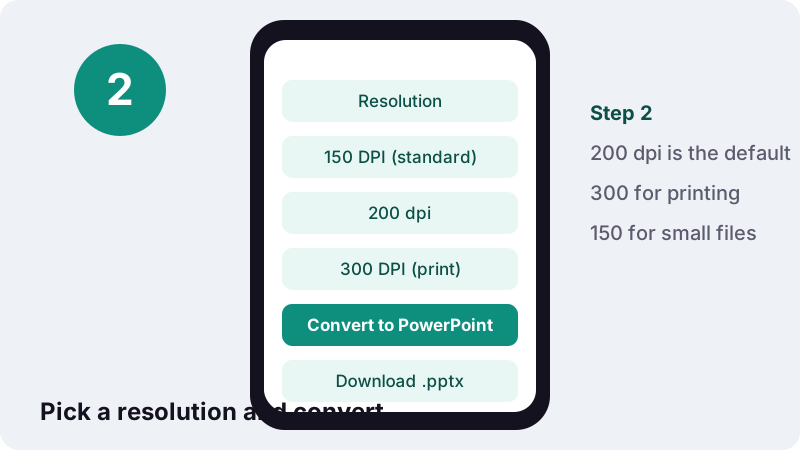
- Pick a resolution. Leave Resolution on 200 dpi, or choose 150 DPI (standard) for a smaller file or 300 DPI (print) for printing.
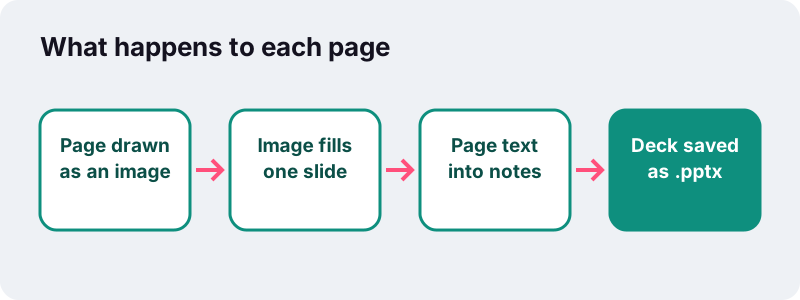
- Convert to PowerPoint. Press Convert to PowerPoint. Each page is drawn as a full-slide picture and its text goes into the speaker notes.
- Download. Tap the download button to save the .pptx and open it in PowerPoint or Google Slides.
PDF to PPT in three steps
To go from PDF to PPT here, tap Choose a PDF, leave the resolution on 200 dpi and press Convert to PowerPoint. You get a .pptx file with the same name as your PDF, holding one slide per page, ready to open in PowerPoint.
Each slide shows its page as a single picture that fills the slide, and the words found on that page are pasted into the slide's speaker notes. The result therefore looks identical to the PDF while still giving you text to read from during a talk.
No account, no watermark and no limit on the number of conversions. The page loads a PDF renderer and a .pptx writer into the browser, and your phone's or computer's processor does all of the work.
How do I convert a PDF to PowerPoint step by step?
Pick the file, choose a resolution, convert, download. The detailed version, which is the same on Windows, macOS, Android and iPhone:
- Tap Choose a PDF, or drop the file onto the box on a computer.
- Open the Resolution list: 150 DPI (standard), 200 dpi (pre-selected) or 300 DPI (print).
- Press Convert to PowerPoint. A progress line counts the pages as they are drawn.
- When the message says how many slides were made, tap the download button.
- Open the .pptx in PowerPoint and start Presenter view to check that the notes line up with the slides.
If the PDF asks for a password, the converter stops with a message. Remove the password first with Unlock PDF (you need to know it), then convert the unlocked copy.
What does the PowerPoint file contain?
One slide per PDF page, in the same order, with nothing added and nothing dropped. The slide size is taken from the first page of the PDF, so an A4 portrait document produces tall slides and a deck exported from presentation software keeps its widescreen shape.
| Part of the .pptx | What you get |
|---|---|
| Slides | One per PDF page, same order |
| Slide size | Taken from page 1 (A4 portrait page → 8.27 × 11.69 in slide) |
| Slide content | One picture of the page, filling the slide |
| Speaker notes | The text lines found on that page |
| File name | Your PDF's name with .pptx at the end |
PowerPoint uses one size for the whole presentation. Microsoft's help page on slide size says it plainly:
“PowerPoint isn't able to resize one slide within a presentation. All slides in a presentation are the same size.”
So when a PDF mixes portrait and landscape pages, later pages are scaled down to fit inside the first page's slide and centred, with empty space at the sides or top. Nothing is cropped.
Can I edit the text on the slides?
No, not the original words. Each slide is a picture of its page, which is why the layout, fonts and spacing look exactly as they did in the PDF. You can still type new text, draw arrows, add shapes and animations on top of the picture in PowerPoint.
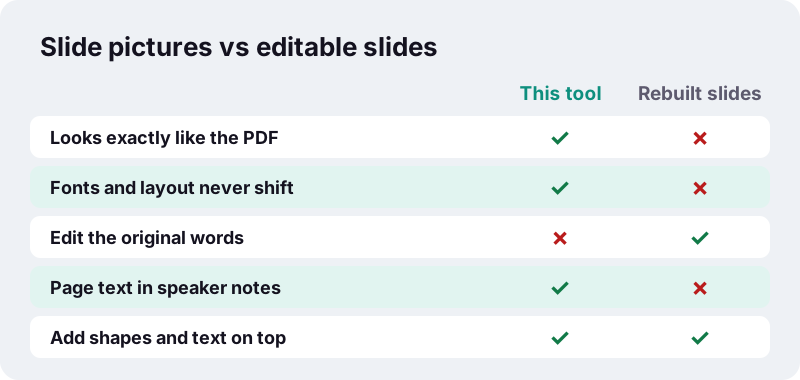
Rebuilding PDF pages as editable PowerPoint text boxes is a guessing game: fonts get replaced, lines wrap differently and columns drift. A picture avoids all of that. When you really need to rewrite the words, convert the PDF with PDF to Word, edit there, and paste the text into your own slide design.
Why choose a PDF to PPT converter that makes picture slides?
Because most people converting PDF to PPT want to present the document, not redesign it: a lecturer showing a paper, a sales rep walking a client through a brochure, a student presenting a report. Picture slides are guaranteed to look right on the projector, even on a computer that lacks the original fonts.
How do the speaker notes help?
They give you the page's words next to the slide while only the slide is shown to the room. The converter collects the text lines it finds on each page and places them in that slide's notes, one line per line of the PDF.
“During your presentation, the speaker notes are visible on your monitor, but aren't visible to the audience.”
- Read along: small print on a dense page is easier to read in the notes pane than on the slide.
- Search: the notes are real text, so PowerPoint's search finds words that are only pictures on the slides.
- Copy: lift a quotation out of the notes into a new text box on the slide.
- Trim: delete what you will not say and keep only your talking points.
A scanned PDF has no text layer, so its slides get empty notes. Run the file through OCR PDF first; once the pages carry recognised text, a second conversion fills the notes.
Which resolution should I choose: 150, 200 or 300 dpi?
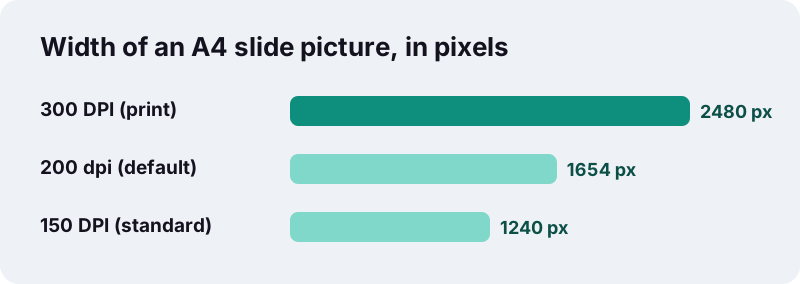
Keep 200 dpi for presenting on screens, choose 300 dpi if you will print the slides or zoom into fine detail, and choose 150 dpi when the file must stay small, for example to email it. Higher resolution means sharper pictures and a bigger .pptx.
| Resolution | A4 page picture (approx.) | US Letter picture (approx.) | Best for |
|---|---|---|---|
| 150 DPI (standard) | 1240 × 1754 px | 1275 × 1650 px | Email, quick sharing, text-only pages |
| 200 dpi | 1654 × 2339 px | 1700 × 2200 px | Presenting on a laptop or projector |
| 300 DPI (print) | 2480 × 3508 px | 2550 × 3300 px | Printed handouts, detailed drawings |
Dots per inch simply sets how many pixels describe each inch of the page; Wikipedia's article on dots per inch explains that, up to a point, more dots give clearer and more detailed output. Even 150 dpi gives an A4 page more vertical pixels than a 1920 × 1080 screen can show at once.
How big is the .pptx and how long does it take?
In our tests a 6-page text PDF became 6 slides in 2.4 seconds, and the .pptx weighed 2.55 MB at 200 dpi. That was headless Chrome on a Windows 10 PC; a phone needs more time, because each page is drawn as an image one after another.
| Input | Setting | Result | Time |
|---|---|---|---|
| 6-page text PDF | 200 dpi | 6 slides, 2.55 MB, notes hold page text | 2.4 s |
Picture slides are heavier than the PDF they come from, because a page of crisp vector text turns into millions of pixels. If the deck is too large to send, convert again at 150 dpi, or remove pages you will not show beforehand with Remove pages.
Is my PDF uploaded when I convert it?
No. Your browser reads the PDF from your own storage, draws the pages in the open tab, writes the .pptx in memory and hands it back as a download. Our server only sent the web page and its code.
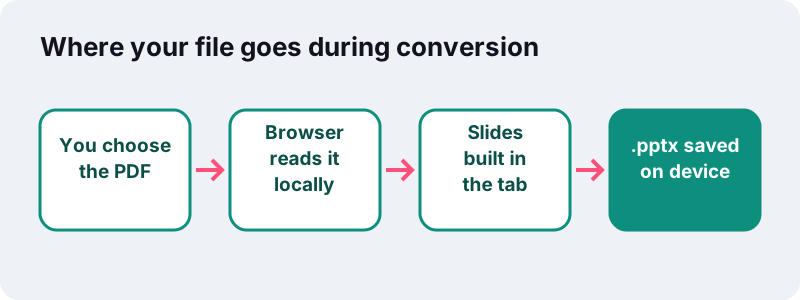
Browsers have a standard interface for this; Mozilla's reference describes the FileReader API as a way for web applications to read files stored on the user's computer. Many online PDF services upload documents to their servers instead; with this tool, unreleased slides, client pitches and exam papers stay on your device.
Why not just insert the PDF into PowerPoint?
You can, but it is slow for more than a page or two. Microsoft's own help admits the problem before describing two workarounds:
“Content from a PDF file might be what you need for your presentation, but it’s not as easy to get content out of a PDF file as it is from many other document types.”
| Method | How it works | Good for |
|---|---|---|
| Screen clipping in PowerPoint | Capture part of an open PDF window, one picture at a time | A single chart or paragraph |
| Insert as object | Embeds the whole PDF behind an icon or preview to open during the show | Keeping a reference document at hand |
| This PDF to PPT tool | Every page becomes its own slide, notes filled automatically | Presenting a whole document |
Microsoft also notes that inserting PDF content is not possible in PowerPoint for the web. A .pptx made here is an ordinary presentation file, so it does not depend on that feature.
Can I open the slides in Google Slides or on a phone?
Yes. The output is a standard .pptx, the default PowerPoint format since PowerPoint 2007 according to the Library of Congress PPTX format description. Google's help lists .pptx among the presentation files that can be converted to Google Slides (Work with Office files).
Because the slides are pictures, they look the same in every app that can show a .pptx: there are no fonts to substitute and no text boxes to reflow. The notes are plain text and travel along with the slides.
When is PDF to PPT the right move?
Whenever a document has to be shown on a screen, page by page, in front of people. A PDF viewer in full-screen mode can do that too, but a deck lets you add a title slide, mix in your own slides, reorder freely and read your notes in Presenter view.
| Who | Typical PDF | What the deck adds |
|---|---|---|
| Teacher or lecturer | Worksheet, article, past exam | Arrows and highlights drawn over the page during class |
| Student | Research paper or lab report | A title slide and the paper's text in the notes |
| Sales or account manager | Brochure, price list, proposal | Your own intro slides around the client's pages |
| Conference speaker | Slides received only as PDF | A file that runs in the venue's PowerPoint with notes |
| Architect or engineer | Plans exported from CAD | Sharp 300 dpi slides you can zoom into |
If you only need to send the document, keep it as a PDF. PDF to PPT conversion is for presenting, not for archiving or editing.
Tips for a better PDF to PowerPoint deck
A few minutes of preparation on the PDF side gives a cleaner deck. All of the tools below also run in your browser.
- Present only what you need. Pull the relevant pages out with Split PDF before converting.
- Fix the order first. Rearrange pages with Organize PDF, or simply drag slides in PowerPoint afterwards.
- Turn sideways pages upright. Use Rotate PDF so landscape scans do not appear on their side.
- Mixed page sizes? Put a page of the shape you want first, since page 1 sets the slide size.
- Only need pictures? PDF to JPG gives you the page images without a deck around them.
After converting, check the deck in slide sorter view. Picture slides make it easy to spot a missing or doubled page at a glance.
Frequently asked questions
Is this PDF to PPT converter free?
Yes. There is no sign-up, no watermark and no cap on files or pages. The conversion uses your own device's processor, so it costs us nothing per file.
Will the slides be editable?
The slides are pictures of the pages, so the original words cannot be edited on the slide. You can add new text boxes, shapes and animations on top, and the page text is available in the speaker notes.
Does the converter create .ppt or .pptx files?
It creates .pptx, the format PowerPoint has used by default since PowerPoint 2007. Current versions of PowerPoint and Google Slides open it.
Why do some slides have empty notes?
Those pages have no text layer, usually because they are scans or photos. Run OCR PDF on the file first so the pages carry recognised text, then convert again.
Why do some pages look smaller on their slide?
All slides in a presentation share one size, taken from your first page. A page with a different shape is scaled to fit inside that slide and centred, so nothing is cut off.
Which resolution should I pick?
200 dpi suits presenting on screens. Choose 300 dpi for printing or zooming into detail, and 150 dpi to keep the file small for email.
Can I convert PDF to PowerPoint on my phone?
Yes. Open this page in Chrome or Safari, choose the PDF from your files and tap Convert to PowerPoint. Long documents take longer on a phone because every page is drawn as an image.
Is my document uploaded?
No. The PDF is read and converted inside your browser and the .pptx is saved straight to your device. The page reports that 0 bytes were uploaded.
Can I convert a password-protected PDF?
Not directly. The tool asks you to remove the password first. If you know the password, Unlock PDF removes it in your browser; then convert the unlocked copy.
Is ilovepdfe the same as iLovePDF?
No. ilovepdfe is an independent site and is not affiliated with iLovePDF, which is a separate company. The practical difference is that ilovepdfe processes your files in your browser instead of uploading them.
Sources
- Change the size of your slides — Microsoft Support
- Add speaker notes to your slides — Microsoft Support
- Insert PDF file content into a PowerPoint presentation — Microsoft Support
- PPTX Transitional (Office Open XML), ISO 29500:2008-2016, ECMA-376 — Library of Congress
- Work with Office files — Google Docs Editors Help
- Dots per inch — Wikipedia
- FileReader — MDN Web Docs (Mozilla)
- PDF (Portable Document Format) Family — Library of Congress