How to scan to PDF with a phone
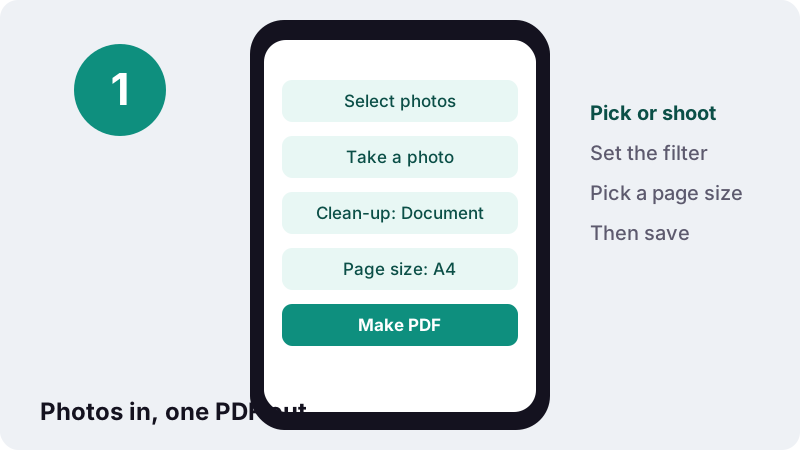
- Select photos. Tap Select photos to choose pictures of the pages, or Take a photo to open the camera and shoot each page.
- Order the pages. Use the ↑ and ↓ arrows to put the photos in reading order and × to remove a bad shot.
- Choose clean-up and page size. Keep Clean-up on Document (sharp, white paper) or pick Colour, Greyscale or Black and white, then choose A4, US Letter or Same as image.
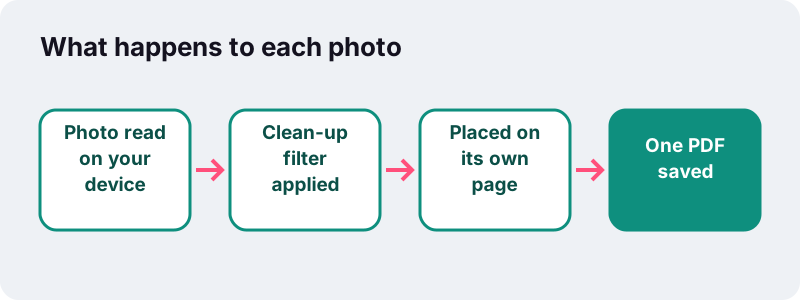
- Make PDF. Press Make PDF. Each photo is cleaned and placed on its own page on your device.
- Download. Tap Download to save the PDF.
What does this scan to PDF tool do?
This scan to PDF tool turns photos of paper documents into one PDF file, one page per photo, after cleaning each picture so it looks like a scan rather than a snapshot. You can take the photos with the phone camera from the page or choose pictures already saved on the device.
It is built for the everyday case: no scanner at home, a form to send today, and a phone in your pocket. JPG, PNG, WebP, GIF and BMP pictures are accepted. Everything is processed in your browser, and the result line ends with 0 bytes uploaded.
How do you scan to PDF with your phone in four steps?
Pick or shoot the photos, choose a clean-up filter and a page size, press Make PDF and download. There is nothing to install and no account to create.
- Tap Select photos to pick pictures from your gallery or folders, or tap Take a photo to open the camera and shoot the first page.
- Add more pages with Take a photo or Add more files. Use ↑ and ↓ to put the pages in order, and × to drop a blurred shot.
- Under Clean-up, keep Document (sharp, white paper) or choose Colour, Greyscale or Black and white. Under Page size, choose A4, US Letter or Same as image.
- Press Make PDF, then tap Download. One photo gives a PDF named after it; several photos give
scan.pdf.
The pages follow the order of the list, top to bottom. Shoot the pages in reading order and you will rarely need the arrows.
Which clean-up filter should you choose?
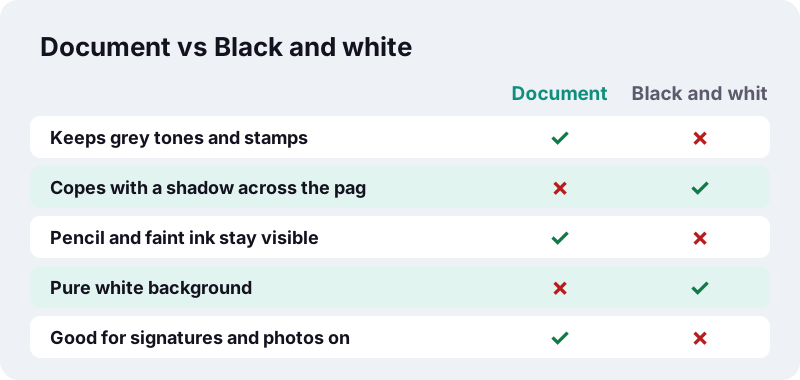
Use Document for most printed pages, Black and white when a shadow or uneven light spoils the photo, Greyscale for pencil notes or faded print, and Colour when colour carries meaning, such as a coloured stamp, a chart or a highlighted line.
| Filter | What it does to the photo | Best for | Watch out for |
|---|---|---|---|
| Document (default) | Greyscale, then stretches the tones so the paper turns white and the ink turns black | Letters, contracts, printed forms, receipts | Coloured stamps become grey |
| Colour | Keeps the photo as taken | Drawings, coloured charts, ID cards, certificates with seals | Bigger file, grey or yellow paper stays visible |
| Greyscale | Removes colour, keeps every shade of grey | Pencil, faint print, old paper | Background stays slightly grey |
| Black and white | Each pixel becomes pure black or pure white, compared with its own neighbourhood | Text pages with shadows or uneven light | Photos and soft shading turn blotchy |
Why is Document the default?
Because most people scan printed text on white paper, and that is exactly what the Document filter is tuned for. It finds the darkest few percent of the photo and the brightest part, then spreads the tones between them. Grey-looking paper under a kitchen lamp comes out close to white, and dull ink becomes crisp black.
It still keeps shades of grey, so a signature, a light pencil mark or a stamp does not vanish. That is the main reason to prefer it over Black and white when the light was even.
How does the Black and white filter deal with shadows?
It decides black or white for each pixel by comparing it with the average brightness around it, not with one fixed level for the whole page. A shadow darkens the neighbourhood too, so the text inside it is still judged correctly and the shaded paper still turns white.
Image-processing literature calls this local or adaptive thresholding, and describes when it helps:
“However, in some cases, it can be advantageous to apply a different threshold to different parts of the image, based on the local value of the pixels. This category of methods is called local or adaptive thresholding. They are particularly adapted to cases where images have inhomogeneous lighting”
In practice, this is the filter to try when your arm or the phone casts a shadow across half the page, or when a desk lamp lights one corner much more than the other. Pages saved with this filter are stored as PNG, which keeps black text edges sharp.
When does Black and white go wrong?
On anything that is not plain text. Photos printed on the page, grey tables, logos and soft pencil turn into speckles, because every pixel must become pure black or pure white. If a page mixes text and pictures, Document or Greyscale gives a calmer result.
A4, US Letter or Same as image: which page size?
Choose the paper size the recipient expects: A4 in most of the world, US Letter in the United States and Canada. Choose Same as image when the paper itself is small or unusual, such as a receipt or a ticket, and you do not want white space around it.
| Page size | Page dimensions | How the photo is placed | Good for |
|---|---|---|---|
| A4 (default) | 210 × 297 mm | Scaled to fit, centred, turned landscape if the photo is wider than tall | Forms and letters for most countries |
| US Letter | 8.5 × 11 in | Scaled to fit, centred, landscape if the photo is wide | US and Canadian paperwork |
| Same as image | Follows the photo, sized as if it were 200 dpi | Fills the page, no margins added | Receipts, tickets, business cards, notebook pages |
Dots per inch is simply a density measure. Wikipedia defines it as the number of individual dots that can be placed in a line within the span of 1 inch (25.4 mm). With Same as image, a 1,600-pixel-wide photo becomes a page 8 inches wide.
How do you take a phone photo to PDF that is easy to read?
Most of the quality is decided before you press the button: light, angle and framing. A good phone photo to PDF needs the page flat, evenly lit and filling most of the frame, with the phone held parallel to the paper.
- Use daylight or a ceiling light. Avoid a lamp at one side; it creates a gradient that even the best filter only partly hides.
- Hold the phone straight above the page. The tool does not correct perspective, so a tilted shot stays a trapezium.
- Fill the frame. Leave a thin border of table around the page rather than half a desk.
- Put the page on a dark, plain surface. The edge of the paper is then easy to see, and you can crop later if needed.
- Flatten folded letters. Press them under a book for a minute; creases cast thin shadows.
- Turn off the flash for glossy paper, which reflects it as a white spot.
- Tap to focus on the text and keep still for a second; blur cannot be fixed afterwards.
What resolution is enough for a phone photo to PDF?
Any recent phone camera is more than enough. The tool scales each photo so its longest side is at most 2,400 pixels, which still gives about 200 pixels per inch across an A4 page. That keeps text sharp while keeping the PDF a sensible size.
How big will the scanned PDF be?
Usually a fraction of the original photos. In our tests, two phone-camera JPGs totalling 4.04 MB became a two-page PDF of 1.41 MB with the Document filter, done in 0.6 s on a normal Windows PC.
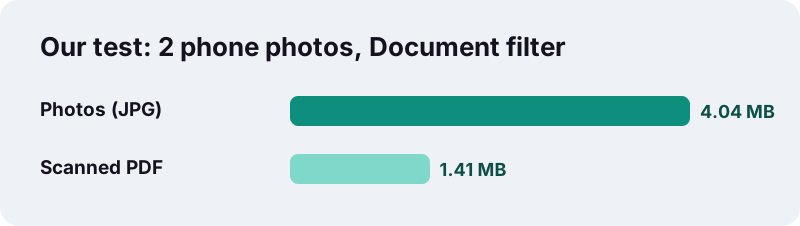
Three things keep the size down. Photos are scaled to 2,400 pixels on the longest side. Colour, Document and Greyscale pages are saved as JPEG at a balanced quality. Black and white pages are saved as PNG, which suits two-colour images with large white areas.
Need it smaller for an upload form? Run the result through Compress PDF, or go straight to compress a PDF to 1 MB if a portal sets that limit. For a strict 100 KB cap, fewer pages and the Document filter help most.
Why scan to PDF instead of sending the photos?
Because a PDF keeps the pages together, in order, at a predictable paper size, and most offices, schools and online forms ask for one file rather than a handful of pictures.
- One attachment, not five. The person receiving it reads page 1 to page 5 without opening each photo.
- Prints correctly. A4 or Letter pages print at the right size; a raw photo often prints tiny or cropped.
- Looks official. White paper and black text read like a scanner copy, not like a picture of your table.
- Accepted by upload forms. Many portals accept only PDF for documents.
- Easy to extend. You can later add, merge or number pages with other PDF tools.
The Library of Congress format description of PDF notes that the format can also be used to create documents from scanned page images, which is exactly what this tool produces: pages that are pictures, laid out on standard paper.
What can't this scan to PDF tool do?
It does not find the edges of the paper, crop the photo to the page or straighten a page shot at an angle. Each photo is placed whole, so whatever is around the paper stays in the PDF. We would rather say it plainly than let you discover it after sending.
Dedicated scanner apps do this step for you. Apple's guide to the iPhone's built-in scanner, for example, describes a manual crop before saving:
“If your device is in Auto mode, your document will automatically scan. If you need to manually capture a scan, tap the Shutter button or press one of the Volume buttons. Then drag the corners to adjust the scan to fit the page, then tap Keep Scan.”
With this tool, frame the page tightly when you shoot, or crop the photo in your gallery app before choosing it. Two other limits:
- No text recognition. The PDF holds pictures of the pages, so you cannot search or copy the words yet. Run OCR PDF on the result to add a searchable text layer.
- No automatic rotation. If a page comes out sideways, fix it afterwards with Rotate PDF, which turns pages without re-compressing them.
Can you scan to PDF on iPhone, Android and a computer?
Yes. The page works in any modern browser. On a phone, Take a photo opens the camera directly; on a computer, you choose photos that you copied from a phone or from a camera.
| Device | How you add pages | Tip |
|---|---|---|
| iPhone / iPad (Safari, Chrome) | Take a photo opens the rear camera; Select photos opens the photo library or Files | Shoot each page, tap Use Photo, then Take a photo again for the next one |
| Android (Chrome, Samsung Internet, Firefox) | Take a photo opens the camera app; Select photos opens the gallery or file picker | If the camera app asks which one, choose the main camera |
| Windows / macOS | Select photos, or drag pictures onto the box | Send the photos from your phone first, then build the PDF on the bigger screen |
| Chromebook / Linux | Select photos or drag and drop | Works the same as on other computers |
How does the Take a photo button open the camera?
Through a standard HTML feature. The button belongs to a file input with the capture attribute set to the rear camera. MDN documents it like this:
“The capture attribute specifies that, optionally, a new file should be captured, and which device should be used to capture that new media of a type defined by the accept attribute.”
MDN lists environment as the value for the outward-facing camera, which is the one we ask for. On a computer without a camera, the same button simply opens the file picker.
Are your scanned pages private?
Yes. The photos are read and cleaned by your own browser and the PDF is assembled on your device, so payslips, bank letters or medical forms are never sent to a server for this job.
That is how the web's File API works. MDN puts it this way: Using the File API, web content can ask the user to select local files and then read the contents of those files. The filters run on a canvas in the page memory, and the finished file is handed back to you as a download.
Many online PDF services upload your file to their servers to process it. Here, the result line confirms 0 bytes uploaded, and closing the tab clears everything. More details are on our privacy page.
Scan to PDF or JPG to PDF: which tool fits?
Use this page when the photos show paper documents that should look scanned. Use JPG to PDF when the pictures are real photos, screenshots or artwork that must keep their exact colours.
| Question | Scan to PDF | JPG to PDF |
|---|---|---|
| Cleans paper and ink | Yes (Document, Greyscale, Black and white) | No, pictures are kept as they are |
| Opens the phone camera | Yes, Take a photo | No, choose existing files |
| Page sizes | A4, US Letter, Same as image | Same as image, A4, US Letter, plus margins and orientation |
| Keeps original JPG bytes | No, each page is re-encoded after clean-up | Yes at Original quality |
| Target file size option | No (compress afterwards) | Yes on the under-50/100/200 KB pages |
If an upload form sets a small limit for a single photographed document, JPG to PDF under 100 KB shrinks the picture step by step until the PDF fits.
How do you make a scanned PDF searchable and editable?
Run optical character recognition on it. A scanned PDF only contains pictures of text, so Ctrl+F finds nothing and you cannot copy a sentence. OCR PDF reads the words and adds an invisible text layer on top of each page.
- Make the PDF here with the Document or Black and white filter; clean, high-contrast pages are read more reliably.
- Open OCR PDF, choose the file and check the language of the text.
- Keep the Searchable PDF result to search and copy text, or choose Plain text (.txt) for the words alone.
- Need to change the wording? Convert the searchable file with PDF to Word.
Straight, well-lit pages make all the difference at this stage. A tilted or shadowed photo that looks readable to you can still confuse the recognition engine.
What can you do with the scanned PDF next?
Join it with other documents, fix its page order, number its pages or shrink it for email. Each step is a separate tool that also runs in your browser.
- Merge PDF to add the scan to an application packet or a report.
- Organize PDF to move a page you shot out of order.
- Remove pages to drop a duplicate or blurred page.
- Add page numbers so a long scanned contract is easy to reference.
- Compress PDF when the file is too large to attach.
Frequently asked questions
How do I scan to PDF on my phone for free?
Open this page in your phone's browser, tap Take a photo and shoot the page, add more pages the same way, keep the Document clean-up, then press Make PDF and download. There is no app, no account and no watermark.
Can I turn a phone photo to PDF that I took earlier?
Yes. Tap Select photos and choose pictures from your gallery or files. JPG, PNG, WebP, GIF and BMP are accepted, and each photo becomes one page.
Does the tool crop the page or fix a tilted photo?
No. It does not detect the paper's edges or correct perspective, so the whole photo is placed on the page. Frame the page tightly when you shoot, or crop the photo in your gallery before choosing it.
Which filter makes a photo look most like a real scan?
Document, the default. It turns the paper close to white and the ink close to black while keeping grey tones. Switch to Black and white if a shadow covers part of the page.
Can I change the order of the pages?
Yes. Before pressing Make PDF, use the ↑ and ↓ arrows next to each photo. Use × to remove a photo. After saving, Organize PDF can also reorder pages.
Is the scanned PDF searchable?
Not yet. The pages are pictures. Run OCR PDF on the result to add an invisible text layer so you can search and copy the words.
How large is the PDF?
It depends on the photos and the filter. In our tests, two phone photos totalling 4.04 MB became a 1.41 MB two-page PDF with the Document filter. Compress PDF can shrink it further.
Are my photos uploaded anywhere?
No. The photos are read and cleaned by your browser and the PDF is built on your device. The result line shows 0 bytes uploaded.
Is ilovepdfe the same as iLovePDF?
No. ilovepdfe is an independent site and is not affiliated with iLovePDF, which is a separate company. The practical difference is that ilovepdfe processes your files in your browser instead of uploading them.
Why does a page look blotchy in Black and white?
That filter forces every pixel to pure black or pure white, which suits plain text but breaks up photos, logos and soft shading. Use Document or Greyscale for pages that mix text and pictures.
Sources
- HTML attribute: capture — MDN Web Docs
- Using files from web applications — MDN Web Docs
- How to scan documents on your iPhone or iPad — Apple Support
- Thresholding (image processing) — Wikipedia
- Dots per inch — Wikipedia
- PDF (Portable Document Format) Family — Library of Congress
- Optical character recognition — Wikipedia