How to convert Word to PDF with ilovepdfe
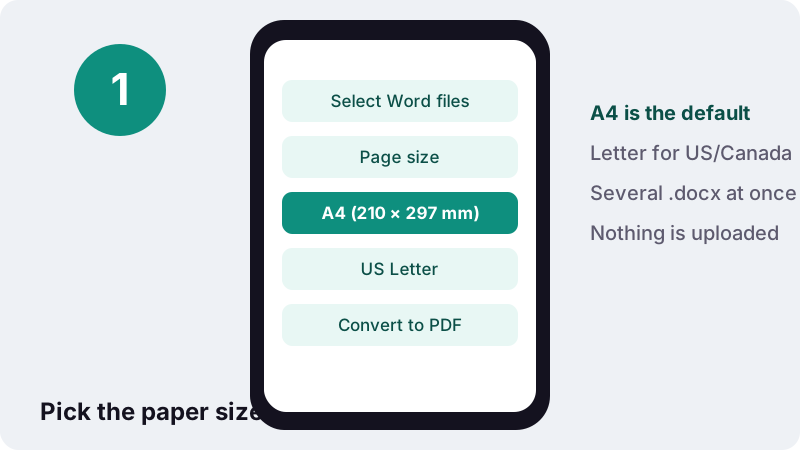
- Select Word files. Tap Select Word files and pick one or more .docx documents. They are opened on your device, not uploaded.
- Choose the page size. Under Page size, keep A4 (210 × 297 mm) or choose US Letter (8.5 × 11 in).
- Press Convert to PDF. Press Convert to PDF and wait while each document is laid out into pages.
- Download the PDF. Download the PDF, or a ZIP if you converted several files, and scroll through it once before sending.
What does this Word to PDF converter do?
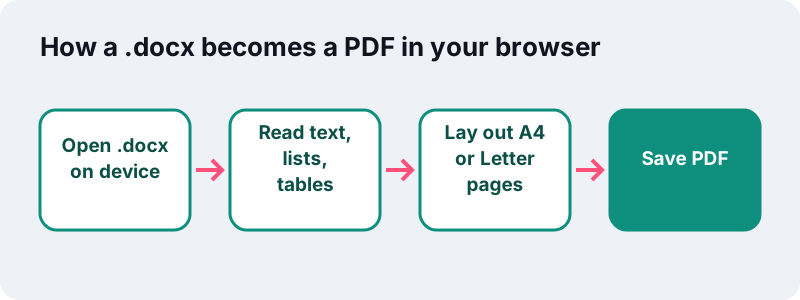
It turns a Word document saved as .docx into a PDF that looks the same on every screen and printer. This converter runs inside your browser: the file is opened from your own storage, laid out into pages by JavaScript, and saved back as a PDF.
The text in the PDF is real text, not a photo of it. Readers can select it, copy it, and search it with Ctrl+F. Headings, lists, tables, pictures and page breaks come along.
No account, no watermark and no file limit per day. You can select several Word files in one go, and each becomes its own PDF; with more than one, they arrive together in a ZIP.
How do you convert Word to PDF in four steps?
Select your files, choose the paper size, press the button and download. Nothing else needs setting up, and nothing is installed.
- Select Word files. Pick one or more .docx documents from your phone or computer, or drop them on the box.
- Choose the Page size. A4 (210 × 297 mm) is the default; switch to US Letter (8.5 × 11 in) for the United States and Canada.
- Press Convert to PDF. Each document is read and laid out page by page.
- Download. One file comes as a PDF with the same name; several come in a ZIP.
Open the PDF once before you send it. A quick scroll shows whether tables, pictures and page breaks landed where you expect.
Why send a PDF instead of the Word document?
Because a PDF looks the same wherever it is opened, while a .docx reflows depending on the editor, the installed fonts and the screen. Job portals, schools, courts and print shops often ask for PDF for exactly that reason.
- CVs and cover letters: the recruiter sees your layout, not a reflowed version.
- Homework and theses: page numbers and headings stay where you put them.
- Quotes and invoices: clients get a document that feels final.
- Printing: a print shop gets fixed pages at A4 or Letter.
A PDF is not a lock, though. Microsoft says so plainly in its own help on saving to PDF:
“Many programs, including Microsoft Word, have the ability to open and edit PDF files. Simply sharing something as a PDF is not sufficient to guarantee the recipient can't edit the file.”
If the content must not be changed or copied, add a password and restrictions with Protect PDF after converting.
Which parts of a DOCX survive the conversion to PDF?
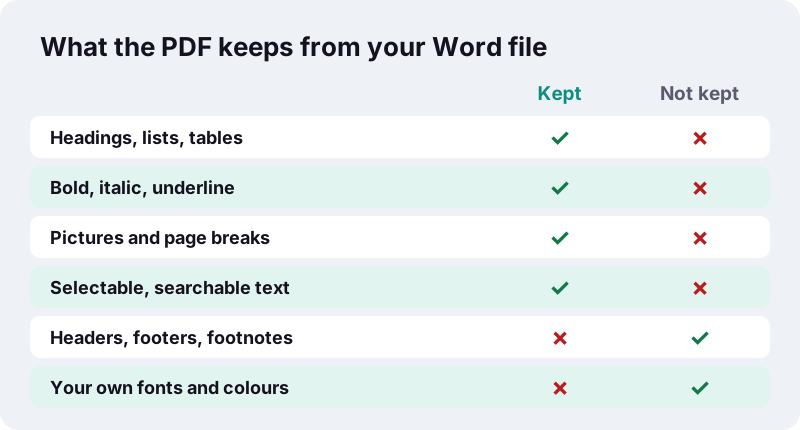
Everything that shapes the body of the document is carried over. The converter reads the structure of the .docx, not a screenshot of it, so each element is rebuilt in the PDF as text, lines or images.
| In your Word file | In the PDF |
|---|---|
| Headings (Heading 1, 2, 3…) | Larger, bold heading text |
| Left, centred, right and justified paragraphs | Same alignment |
| Indents | Same indents |
| Bold, italic, underline, strikethrough | Kept |
| Superscript and subscript (m², H₂O) | Kept |
| Font sizes set in the document | Kept |
| Bulleted and numbered lists | Bullets and numbers kept |
| Tables with borders | Tables with borders |
| Pictures | At the size set in Word |
| Page breaks | New page in the PDF |
| Links | Shown in blue |
What is left out when you convert DOCX to PDF?
A few Word features are not drawn yet. The result message reminds you about the main ones, so nothing disappears silently.
- Headers and footers, including page numbers placed in them. Add numbers afterwards with Add page numbers.
- Footnotes and endnotes.
- Comments and tracked changes. Accept or reject changes in Word first.
- Text boxes and shapes.
- Your own fonts and text colours. Text is set in Noto Sans, in black.
- EMF and WMF pictures, a vector format some Windows programs paste in. Save those as PNG and insert them again.
Old .doc files (Word 97–2003) are a different, binary format and are not read. Open them in Word, LibreOffice or Google Docs and save as .docx first.
How do you prepare a Word document for a clean PDF?
Use Word the way the converter reads it: real styles, real lists and pictures placed in the text. Five minutes of tidying in Word gives a cleaner PDF than any setting can.
- Use heading styles (Heading 1, Heading 2) instead of making normal text bigger by hand, so headings are recognised as headings.
- Use the list buttons for bullets and numbering rather than typing dashes and numbers yourself.
- Insert pictures in line with text rather than floating them in a text box, which is not drawn.
- Move essential footer text into the body, for example a reference number on the first page.
- Accept or reject tracked changes and delete comments you do not want anyone to see in the source file.
- Save as .docx, not .doc, .odt or .rtf.
A document built this way also converts more predictably in the other direction, should anyone later need to turn your PDF back into an editable file.
Why does the PDF use the Noto Sans font?
Because a browser cannot borrow the fonts installed in your copy of Word, and a PDF needs a font embedded in it. Noto Sans is a free family designed to cover a very wide range of writing systems, so accented, Cyrillic and Vietnamese text all display correctly.
The font family was named after the goal of removing "tofu", the empty boxes shown when a font lacks a character. In practice it means a CV with a name like Đặng or Øyvind does not come out with blank squares.
If the exact typeface matters (a brand font, a wedding invitation), use Word's own Save as PDF on a computer where that font is installed.
Does Word to PDF work with Arabic, Hebrew, Hindi or Thai?
Yes. Lines written in Arabic, Hebrew, Indic scripts or Thai are shaped by your browser, which already knows how to join and position those letters, and are placed in the PDF as sharp images of the line. Latin, Greek and Cyrillic lines stay as real text.
“For example, a character in Arabic script can have as many as four different shape-forms, depending on context.”
That shaping is why simpler converters often print Arabic as disconnected letters in the wrong order. The trade-off here is that those particular lines cannot be selected or searched in the PDF; if you need that, run OCR PDF on the result with Arabic selected.
How long does a conversion take?
A few seconds for a normal document. Time grows with the number and size of pictures, since each one must be decoded and placed, much more than with the amount of text.
In our tests, a 2.0 MB .docx containing a title, headings, lists, a table, lines in Arabic, Russian and Vietnamese, one photo and a page break became a 2-page PDF of 2.05 MB in 2.5 seconds, with all text selectable.
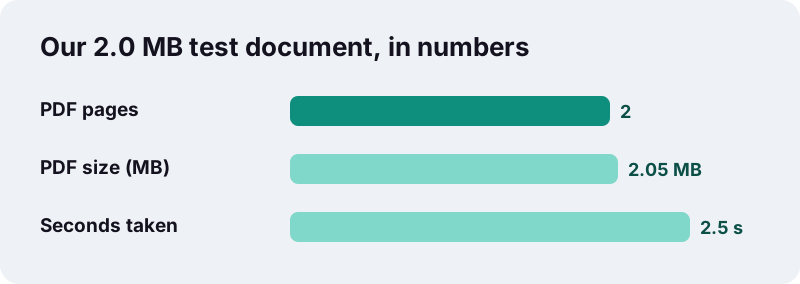
The PDF was about the size of the Word file because the photo was most of both. To shrink a PDF full of pictures, run it through Compress PDF, keeping in mind that its stronger levels turn pages into images.
Should you choose A4 or US Letter?
Choose the paper used where the PDF will be printed. A4 is standard in most of the world; US Letter is standard in the United States and Canada. The two differ by a few millimetres, enough to push a line onto the next page.
| Size | Millimetres | Inches | Typical use |
|---|---|---|---|
| A4 | 210 × 297 | 8.27 × 11.69 | Europe, Africa, Asia, Latin America, Oceania |
| US Letter | 216 × 279 | 8.5 × 11 | United States, Canada |
All pages of a document use the size you choose. If you are not sure, ask the person who will print it, or keep the default A4.
What is a .docx file, exactly?
It is a ZIP package of XML files that describe the text, styles and pictures of a document. It became Word's standard format with Word 2007 and is now an international standard, ISO/IEC 29500.
“The Office Open XML-based word processing format using .docx as a file extension has been the default format produced for new documents by versions of Microsoft Word since Word 2007.”
Because the format is open, many editors write it: Google Docs, LibreOffice Writer and Apple Pages all export .docx. Files from any of them can be converted here, as long as they are saved in that format.
Is converting DOCX to PDF here private?
Yes. The documents are opened with the browser's File API, which reads files the user picks on their own device, and every step runs locally. Many online PDF services upload documents to their servers; this one does not, and the done message reports 0 bytes uploaded.
That matters for the files people convert most: CVs with home addresses, contracts, medical letters and school records. Close the tab and the documents are gone from memory.
Can you convert Word to PDF on an iPhone or Android phone?
Yes, in any modern mobile browser. Tap Select Word files, pick a .docx from Files, Google Drive or an email attachment you saved, and the PDF lands in your Downloads.
| Device | Pick the .docx from | PDF saved to |
|---|---|---|
| iPhone / iPad | Files app (iCloud Drive, On My iPhone) | Files → Downloads |
| Android | Files, Downloads or Drive | Downloads |
| Windows / Mac | Any folder | Downloads folder |
Long documents with many photos need more memory, so a phone may be slower than a laptop on the same file.
What should you check in the PDF before sending it?
Thirty seconds of checking prevents most problems. Look at the places where Word and a PDF engine are most likely to disagree.
- Page count: a line pushed onto an extra page can leave a nearly blank last page.
- Tables: wide tables should fit inside the margins.
- Pictures: confirm they sit next to the right paragraph.
- Page numbers: if your Word file had them in the footer, add them again to the PDF.
- Links: click one to be sure it opens the intended address.
Need to change a sentence later without going back to Word? Edit PDF can add text on top of a page, and PDF to Word turns the PDF back into an editable document.
Which tools pair well with a converted document?
After converting, most people do one more thing with the PDF: join it with other files, number it, sign it or protect it. Each of these tools also runs in your browser.
- Merge PDF to put a cover letter and a CV into one file.
- Sign PDF to add a drawn or typed signature.
- Protect PDF to require a password.
- Excel to PDF for the spreadsheet that goes with the report.
Frequently asked questions
Is this converter free?
Yes. No account, no watermark, no limit on how many documents you convert. The work is done by your own device.
Are my Word files uploaded?
No. They are read by your browser and converted locally. The result message confirms 0 bytes uploaded.
Can I convert .doc files?
Not directly. .doc is the older binary Word format. Open it in Word, LibreOffice or Google Docs, save it as .docx, then convert it here.
Can I convert several DOCX files to PDF at once?
Yes. Select several .docx files; each becomes its own PDF, and you download them together as a ZIP.
Is the text in the PDF selectable and searchable?
Yes for Latin, Greek and Cyrillic text, which is written as real text in Noto Sans. Lines in Arabic, Hebrew, Indic scripts or Thai are placed as images of the shaped line.
Why are my headers and footers missing?
Headers, footers and footnotes are not included yet. Add page numbers to the PDF with Add page numbers, or put essential footer text into the body before converting.
Why does the font look different from Word?
The browser cannot use the fonts installed on your computer, so all text uses Noto Sans, which covers many languages. Sizes, bold and italic are kept.
Can I choose Letter size instead of A4?
Yes. Under Page size, pick US Letter (8.5 × 11 in) before pressing Convert to PDF.
Will my pictures lose quality?
Pictures are placed at the size set in Word. EMF and WMF vector pictures are not supported; save them as PNG first.
Is ilovepdfe the same as iLovePDF?
No. ilovepdfe is an independent site, not affiliated with iLovePDF, which is a separate company. The practical difference is that ilovepdfe converts your documents in your browser instead of uploading them.
Sources
- DOCX Transitional (Office Open XML), ISO 29500:2008-2016, ECMA-376 — Library of Congress
- Save or convert to PDF or XPS in Office Desktop apps — Microsoft Support
- Complex text layout — Wikipedia
- Noto fonts — Wikipedia
- Doc (computing) — Wikipedia
- Office Open XML — Wikipedia
- Using files from web applications — MDN Web Docs
- PDF — Wikipedia