How to crop PDF pages
- Choose a PDF. Tap Choose a PDF or drop the file on the box. The first page appears with a blue box.
- Pick a crop mode. Keep Trim white margins (each page) and set the Padding, or choose Same box on every page and drag the blue box.
- Crop the pages. Press Crop PDF. Every page gets its new boundary on your device.
- Download. Save yourfile-cropped.pdf. The original file is not changed.
What does this crop PDF tool do?
This tool makes pages smaller by cutting away their edges. In the default mode it looks at each page, finds where the printing starts and ends, and trims the empty white border around it. In the second mode you drag one box on the first page and every page is cut to that box.
The page content itself is not re-drawn. The tool changes the page's size and visible area, so text stays sharp and selectable, links keep working, and there is no quality loss. The whole job runs in your browser and the result shows 0 bytes uploaded.
How do you crop PDF pages in four steps?
Choose the file, pick a crop mode, press the button, download. There is nothing to install.
- Tap Choose a PDF or drop the file on the box. A preview of the first page appears with a blue box showing what will be kept.
- Under Crop mode, keep Trim white margins (each page) and set the Padding, or choose Same box on every page and drag the blue box.
- Press Crop PDF. Each page gets its new size on your device.
- Download
yourfile-cropped.pdf. Your original file is left as it was.
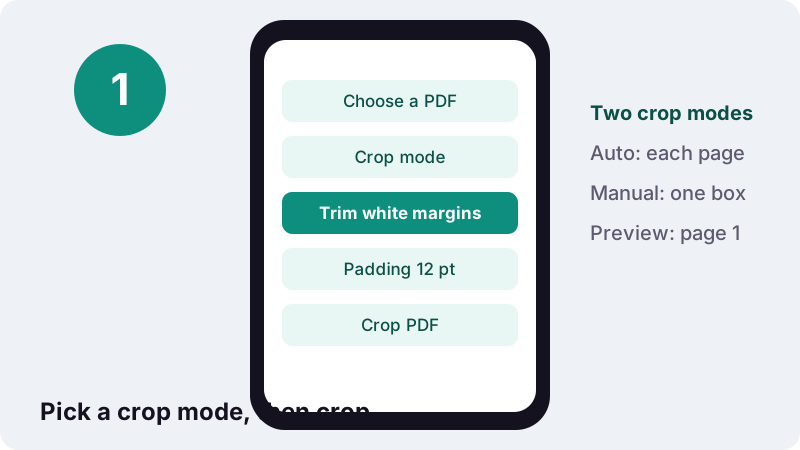
Dragging or resizing the blue box switches the tool to Same box on every page, because you have just drawn your own box.
How do you remove white margins from PDF pages automatically?
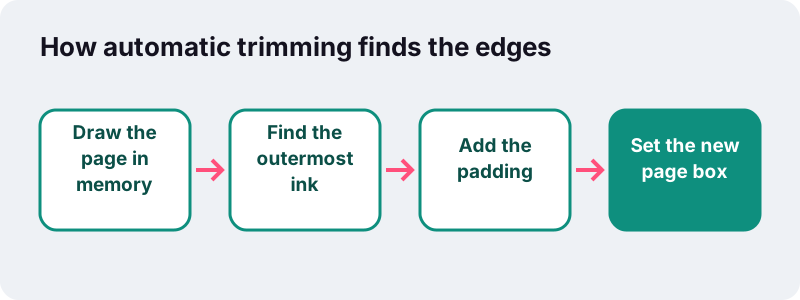
Keep the default mode, Trim white margins (each page). For every page the tool draws the page in memory, finds the outermost marks that are not white, adds the padding you chose, and cuts the page to that rectangle. Each page gets its own crop, so a short last page shrinks more than a full one.
Typography calls this empty border the margin:
“In typography, a margin is the area between the main content of a page (the text-block) and the page edges.”
Margins are useful on paper, where your thumbs hold the page. On a 6-inch phone screen they just make the text smaller. Trimming them lets a reader app zoom the text to the full width of the display.
What counts as white when you remove white margins from a PDF?
Pixels that are very close to pure white are treated as empty paper, so the faint off-white of some exports does not stop the trim. Anything darker, such as a page number, a thin header line, a grey scan border or a speck of dust on a scan, counts as content and sets the edge.
What padding should you leave around the text?
Padding is the white space kept around the printed area, in points. The default 12 pt leaves a thin frame so letters do not touch the screen edge. Use 0 pt for the tightest crop or more for a calmer look; the field accepts 0 to 200 pt.
| Padding | In millimetres (approx.) | Good for |
|---|---|---|
| 0 pt | 0 mm | Images and diagrams you will paste elsewhere |
| 6 pt | 2 mm | Maximum text size on a small phone |
| 12 pt (default) | 4 mm | General reading on phones and tablets |
| 24 pt | 8.5 mm | Reading with room for highlights and notes |
| 36 pt | 12.7 mm | Printing on a desktop printer that cannot print to the edge |
The point used in PDF and desktop publishing is defined as 1/72 of an inch, which is about 0.353 mm. A standard A4 page, 210 × 297 mm, therefore measures about 595 × 842 pt.
What did cropping do to a real invoice in our tests?
It cut the first page to roughly a third of its height. In our tests (headless Chrome on a Windows PC), a 2-page A4 invoice trimmed with 12 pt padding went from 595 × 842 pt to 483 × 276 pt on page 1, in 0.3 s.
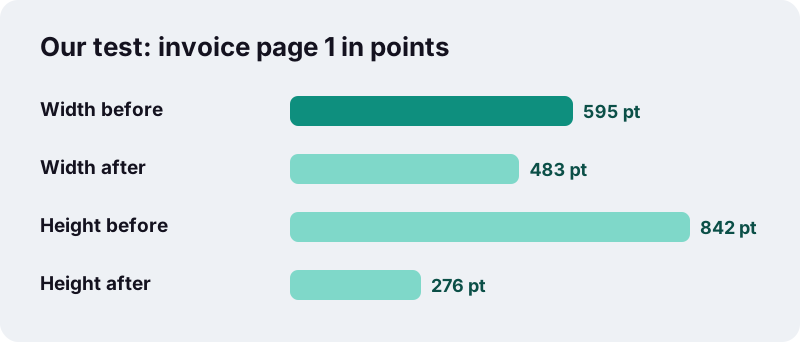
The invoice had a short block of text near the top and an empty lower half, which is common for letters, receipts and one-paragraph notices. That empty paper is exactly what automatic trimming removes. A page printed edge to edge, such as a full-page photo, has almost nothing to cut.
When should you use Same box on every page instead?
When you want the same area kept on every page regardless of what is printed there. Typical cases are cutting off a running header and footer, removing a scanner's black edge, or keeping only the left half of slides that were exported with a notes panel.
- Choose Same box on every page under Crop mode.
- Drag the blue box on the first-page preview to move it; pull its corner to resize it. The shaded area will be cut.
- The box is applied to every page at the same relative position, so pages of a slightly different size are cut in proportion.
- Press the button and download the result.
| Situation | Best mode | Reason |
|---|---|---|
| Book or article read on a phone | Trim white margins | Each page keeps all its text |
| Scans with dark scanner borders | Same box on every page | Dark borders would stop the auto trim |
| Remove page headers and footers | Same box on every page | Headers are ink, so auto trim keeps them |
| Pages with different amounts of text | Trim white margins | Each page is measured on its own |
| Pages that must all stay one size | Same box on every page | Every page gets the same proportions |
Does it crop PDF pages without quality loss?
Yes. The tool sets the page boundaries (the media box and the crop box) and leaves the page content exactly as it was. Nothing is turned into an image, so the text stays selectable, vector drawings stay sharp at any zoom, and the file size hardly changes.
Apple describes cropping in its Preview app in the same terms:
“You can crop a page of a PDF to hide content, or rotate it to change its orientation.”
Note the verb: hide. Pages need turning too? Rotate PDF works the same lossless way, by changing a page setting rather than redrawing it.
Is the cropped-off part really gone?
No. It is hidden, not erased. The trimmed area is still inside the file, outside the new page boundary. Readers do not show or print it, but someone with a PDF editor can enlarge the page box again and see it.
That matters when the edges hold something private, such as an address in a letter's header or a client name in a footer. Cropping is a layout tool. To remove content for good, use Redact PDF, which burns black boxes into the page so the covered text no longer exists in the file.
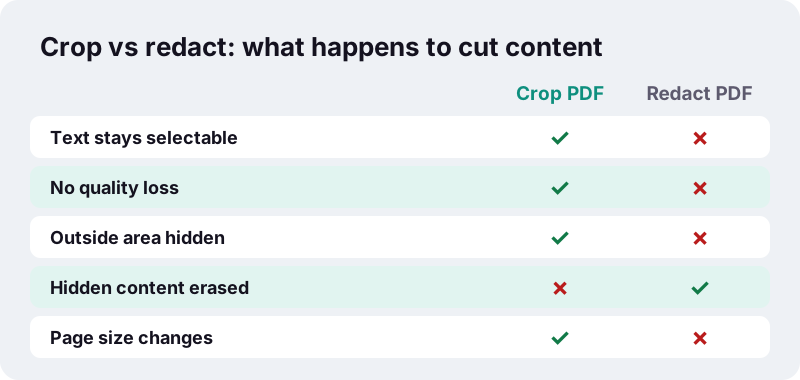
The tool says so itself when it finishes: the pages show only the part inside the box, and the trimmed area is hidden, not erased.
What are good reasons to crop PDF files?
Most people crop for easier reading or cleaner reuse. Some common jobs:
- Reading on a phone or e-reader: wide margins of academic papers and books waste screen space; trimming makes the text bigger at the same zoom.
- Pasting a chart into slides: crop to the chart, then save it as a picture with PDF to JPG.
- Phone scans: cut off the table surface around a photographed document.
- Receipts and tickets: trim a small receipt that was saved on a full A4 page.
- Printing: cropped pages are smaller, so a printer set to fit-to-page enlarges the content.
Does a cropped page print larger?
Usually, if your print dialog scales pages to fit the paper. The new page is smaller than A4 or Letter, so fit-to-page enlarges it. With scaling set to 100% (actual size), it prints at its real size on a larger sheet.
Cropping, resizing or splitting: which one do you need?
They sound alike but solve different problems. Cropping removes the edges of each page and keeps every page. Splitting keeps whole pages but separates them into files. Changing the paper size would scale the content to a new sheet, which this tool does not do.
| You want to | Use | What changes |
|---|---|---|
| Cut empty borders off each page | Crop PDF | Page size shrinks, content untouched |
| Keep only pages 3 to 5 | Split PDF | Fewer pages, each page unchanged |
| Delete a blank page | Remove pages | Page count drops |
| Turn a sideways page upright | Rotate PDF | Orientation only |
| Make the file smaller in KB | Compress PDF | Images re-encoded, size drops |
Can you crop part of one page into a new file?
Yes, in two steps. First take that page out with Split PDF, using the extract option with its page number. Then open the one-page file here, choose Same box on every page, and drag the box around the part you want. The result is a small PDF that contains only that area.
The same trick works for a table in a long report or a map on page 40: isolate the page, crop it, and share a file that opens straight on the part that matters.
What can't the crop tool do?
Knowing the limits saves a second try.
- The preview shows only the first page. In automatic mode every page is measured separately, but you cannot draw a different box per page.
- Coloured page backgrounds count as content, so automatic trimming leaves those pages almost unchanged. Use Same box on every page.
- Blank pages are left at their original size.
- It does not straighten tilted scans or fix perspective; it cuts straight rectangles only.
- It cannot open password-protected PDFs. Remove the password with Unlock PDF first, if the file is yours.
Why crop in your browser instead of uploading?
Because trimming a page does not need a server. Many online PDF services upload your file to process it; this page reads the PDF straight from your device and does the measuring and cropping locally.
“Using the File API, web content can ask the user to select local files and then read the contents of those files.”
To find the margins, the script draws each page on an off-screen canvas and reads its pixels with the browser's canvas API. No copy of the document leaves the device, and the result line confirms 0 bytes uploaded.
Which tools go well with cropping?
Cropping is often the middle step: scan, crop, compress, send. Phone photos can become a PDF with Scan to PDF, and Compress PDF shrinks the result for an upload form.
Frequently asked questions
How do I crop PDF pages for free?
Choose the PDF, keep Trim white margins (each page) or switch to Same box on every page, press Crop PDF and download the copy. No account, no watermark, no upload.
How do I remove white margins from a PDF?
Use the default mode, Trim white margins (each page). Each page is cut to its printed area plus the padding you set, 12 pt by default.
Can I crop all pages at once?
Yes. Both modes crop every page in one go: automatic mode measures each page separately, and Same box on every page applies your box to all pages.
Does cropping reduce quality?
No. Only the page boundaries change; the content is not re-drawn, so text stays selectable and sharp.
Is the cut-off part deleted?
No, it is hidden. The trimmed content is still in the file outside the page box. Use Redact PDF if something must be removed for good.
Can I crop just one page?
Not separately. The tool crops every page. To crop a single page, take it out with Split PDF, crop it, then merge it back.
Why didn't the margins shrink on my scan?
Scans often have grey borders, shadows or specks that count as content. Choose Same box on every page and draw the box inside those borders.
Does it work on a phone?
Yes, in current browsers on iPhone, iPad and Android. You can drag the blue box with a finger.
Will the file get smaller?
Hardly. Cropping hides content rather than deleting it, so the size stays about the same. Use Compress PDF to make it smaller.
Is ilovepdfe the same as iLovePDF?
No. ilovepdfe is an independent site and is not affiliated with iLovePDF, which is a separate company. The practical difference is that ilovepdfe processes your files in your browser instead of uploading them.
Sources
- Crop or rotate a PDF in Preview on Mac — Apple Support
- Margin (typography) — Wikipedia
- Point (typography) — Wikipedia
- Paper size — Wikipedia
- Cropping (image) — Wikipedia
- Using files from web applications — MDN Web Docs
- CanvasRenderingContext2D: getImageData() method — MDN Web Docs
- PDF — Wikipedia