How to edit a PDF
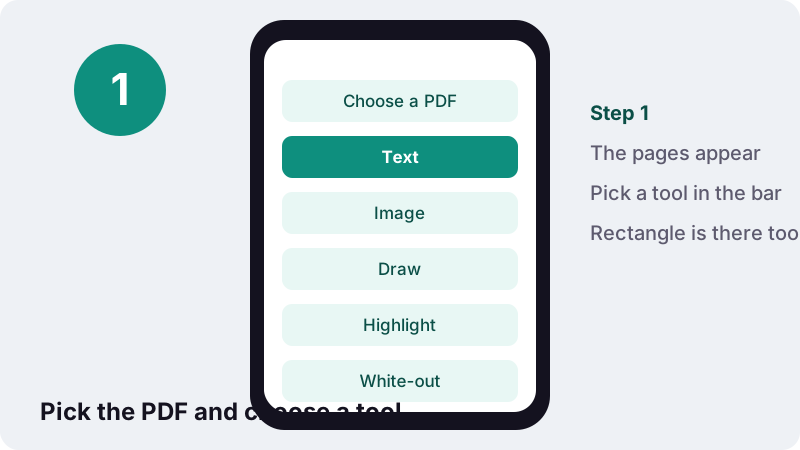
- Choose a PDF. Tap Choose a PDF or drop the file on the box. The pages appear with the toolbar above them.
- Pick a tool. Choose Text, Image, Draw, Highlight, White-out or Rectangle, and set the Colour and Size.
- Click or drag on the page. Place your text or picture, or drag out a highlight or box. Drag to move, use the corner to resize, × to remove.
- Save PDF. Press Save PDF and download the copy ending in -edited.pdf.
Edit PDF files without installing anything
To edit PDF pages here, choose the file, pick a tool from the bar (Text, Image, Draw, Highlight, White-out or Rectangle), click or drag on the page, and press Save PDF. You get a new copy whose name ends in -edited.pdf; your original is not touched.
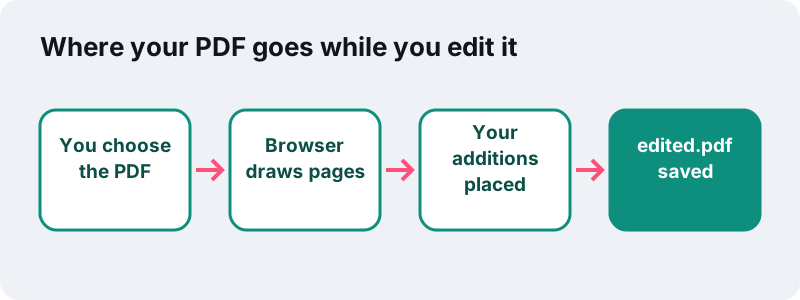
It is free, needs no account and stamps no watermark on the result. The editor is a small program that runs inside the browser tab: it draws your pages on screen and writes the finished file with your device's own processor.
One thing to know up front: this editor adds to a page. It does not rewrite the words that are already printed in the PDF. The section on changing existing text explains why, and what to do when that is what you need.
How do I add text to PDF pages?
Press Text, click where the first letter should go, and type. Choose a size from 9 to 48 pt and a colour, drag the box into place, then press Save PDF. Repeat for every line or note you want to add.
- Tap Choose a PDF, or drop the file on the box on a computer.
- When the pages appear, press Text in the toolbar.
- Click on the page where the text should start. A box with Type here appears; type over it.
- Pick a Size and a Colour. They apply to the selected box.
- Drag the box to fine-tune its position. Press Text again for the next box.
- Press Save PDF and download the edited copy.
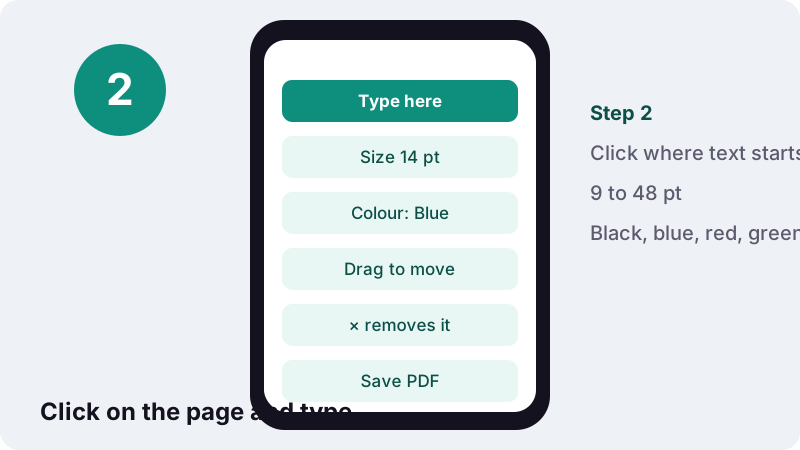
Each press of Text places one box, so you never drop a stray box with a careless click. To add five lines in five places, press Text five times.
The six editing tools at a glance
The toolbar has six tools. Text and Image are placed with a click; Highlight, White-out and Rectangle are dragged out like a box; Draw follows your finger or mouse.
| Tool | What you do | What ends up in the file |
|---|---|---|
| Text | Click, then type | Real text in Noto Sans, 9–48 pt, black, blue, red or green |
| Image | Choose a PNG, JPG or WebP, then click the page | The picture at the size you set; PNG and WebP keep transparency |
| Draw | Draw with mouse, pen or finger | Your stroke as a transparent picture, in the chosen colour |
| Highlight | Drag over the lines | A see-through yellow band, the text under it stays readable |
| White-out | Drag a box | A solid white rectangle on top of the page |
| Rectangle | Drag a box | A thin outline in the chosen colour, to frame a figure or a total |
Everything you add can be selected again before saving: drag to move it, pull the corner handle to resize it, or tap its × to remove it. Pictures keep their proportions while you resize them, so a logo never ends up squashed.
Add text to PDF pages in any language
Text you type is written as real, selectable text, with a Unicode font embedded in the file. Accented Latin letters, Greek, Cyrillic and Vietnamese work. Scripts that join or reorder letters, such as Arabic, Hebrew, Hindi or Thai, are shaped by the browser and placed as a sharp image instead.
In our tests on 2026-10-19 (headless Chrome on a Windows PC), the line Approved by Lina — Ñandú plus a highlight on a 2-page invoice produced a 7.3 KB file, and the added text could be selected and copied in a normal PDF viewer. The tool reported Done in 0.1 s.
Which size should I pick?
| Size | Typical use |
|---|---|
| 9–11 pt | Filling a narrow box on a printed form, small notes in the margin |
| 12–14 pt | Answers on a form, a name and address, normal body text |
| 16–24 pt | A heading or a label that must stand out |
| 32–48 pt | A large mark such as PAID, COPY or a page title |
Multi-line notes
Press Enter inside a text box to start a new line. Lines are spaced evenly and stay aligned on the left, which suits addresses and short comments. For a long passage, it is easier to write it in a word processor and attach it as an extra page with Merge PDF.
Adding a picture, logo or stamp
Press Image, choose a PNG, JPG or WebP from your device, then click the page where it should go. Pull the corner to resize. Each click places another copy, which is handy for a logo on several pages; press the button again to stop.
- Transparent logos: use PNG or WebP. The transparent parts stay transparent on the page.
- Photos: JPG is fine. Very large pictures are scaled so the longest side is at most 2,000 pixels, which keeps the PDF reasonable.
- A company stamp: scan the rubber stamp on white paper, crop it, and save it as PNG.
- Your signature: use Sign PDF instead; it has a drawing pad, handwriting fonts and white-background removal.
Highlight, draw and frame
Highlight works like a marker pen: drag over a line and a see-through yellow band appears, with the words still readable underneath. Draw lets you circle, tick, underline or sketch freehand. Rectangle frames an area with a thin outline.
These three are built for review work: marking the clause you want changed, ticking items on a checklist, circling a total on an invoice. The Draw and Rectangle colours follow the Colour menu, so you can keep red for problems and green for approvals.
A drawing is stored as a transparent image the size of your stroke, so it can be dragged and resized like a picture after you lift your finger. If a stroke goes wrong, tap its × and draw it again.
Can I change the existing text of a PDF?
Not with this tool. It adds new text, pictures and marks on top of the page, but it cannot retype words that are already there. Inside a PDF, each piece of text is drawn at a fixed position with a specific font, so changing a word is not like editing a document in a word processor.
Plenty of PDF software works the same way. Apple's own documentation for Preview on Mac puts it plainly:
“Although you can’t edit the text of a PDF in Preview, you can use the markup tools to provide feedback or write down something you want to remember.”
Three ways around it
- Small fix: cover the wrong word with White-out, then add the right word with Text on top. Fine for a date or a typo, as long as the old word is not secret.
- Larger rewrite: convert with PDF to Word, change the text in your word processor, then turn it back into a PDF with Word to PDF.
- Scanned page: there is no text to change at all, only a picture. Type over it here, or run OCR first if you need to search or copy it.
White-out hides text, it does not delete it
White-out puts a white box over the page. The words under it disappear from view, but they are still inside the file, and anyone can copy them out or remove the box with other software. For names, account numbers or anything confidential, use Redact PDF instead.
“Where text is redacted, in Portable Document (PDF) or word processor formats, by overlaying graphical elements (usually black rectangles) over text, the original text remains in the file and can be uncovered by simply deleting the overlaying graphics.”
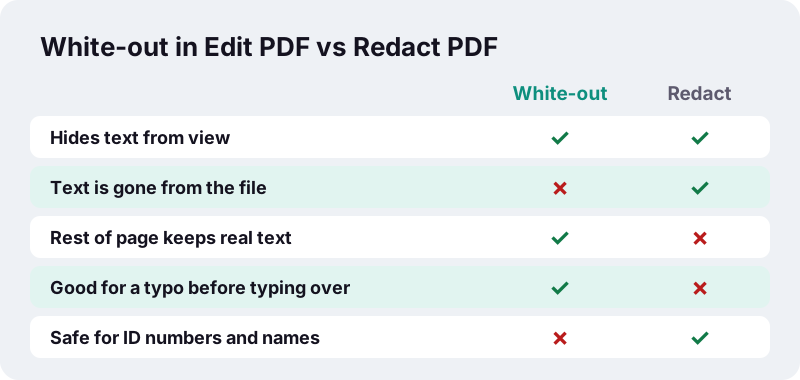
The editor reminds you of this every time: when a saved file contains a white-out box, the result message says the covered text is still inside the file and points to Redact PDF. Redact re-draws the affected pages as images, so the hidden words are really gone, at the cost of those pages no longer being searchable.
What happens when you edit PDF files and save?
Your additions are written into the page content of a new copy, and everything else is copied across unchanged. Original text stays selectable, links keep working, and the file grows only by what you added: a few kilobytes for text, more for photos.
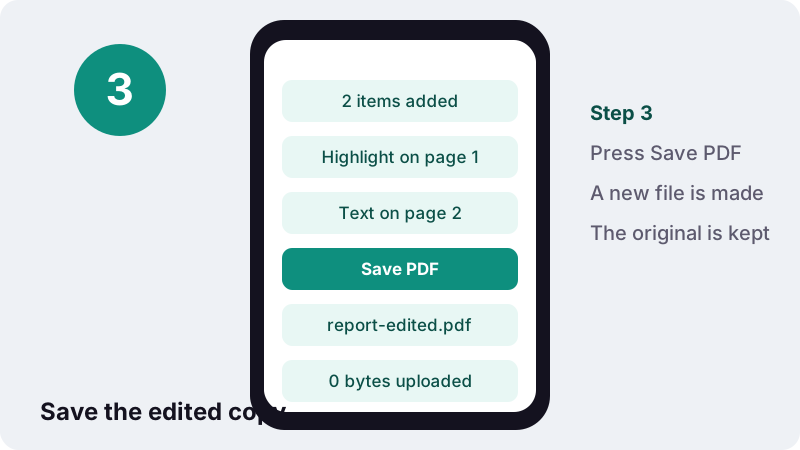
- File name: the original name with
-editedadded, for examplereport-edited.pdf. - Looks the same everywhere: additions are part of the page, not loose comments, so they print and display in every viewer.
- Final once saved: the editor does not reopen your additions as separate items later. Keep the original if you might want to change them.
- Too big to send? Run the result through Compress PDF.
Is it safe to edit PDF documents in the browser?
Yes, in the sense that matters most: the file is not uploaded anywhere. The browser reads it from your device, the editor works on it in memory, and the saved copy goes straight to your downloads. The result line confirms 0 bytes uploaded.
Web pages cannot reach into your folders on their own. MDN's documentation of the browser's file reading interface explains the limit:
“FileReader can only access the contents of files that the user has explicitly selected; it cannot be used to read a file by pathname from the user's file system.”
That makes it a reasonable choice for payslips, medical letters and contracts. The usual care still applies on a shared computer: delete the downloaded copy when you are done.
Edit PDF on iPhone, Android or a laptop
The editor runs in Safari, Chrome, Edge and Firefox, on phones and computers alike. On a touch screen, tap to place text and drag with one finger to highlight, draw or make boxes.
| Device | Tip |
|---|---|
| iPhone / iPad | The file picker opens the Files app; save mail attachments there first |
| Android | Pick from Downloads or Drive; the edited copy lands in Downloads |
| Windows / Mac | Drop the PDF on the box; press Delete to remove a selected item |
| Tablet with a pen | Draw is the most natural tool; write a note by hand, then resize it |
On a small screen, turn the phone sideways so the page is wider, and zoom in before placing text in a narrow box.
Everyday editing jobs
Most people open a PDF editor for one of a handful of reasons. Here is the quickest route for each, including when a different tool does the job better.
| Job | Best route |
|---|---|
| Answer a printed form that has no fillable boxes | Text, one box per answer, 11–12 pt |
| Answer a form that has real fields | Fill PDF form, which types into the fields themselves |
| Mark up a draft for a colleague | Highlight plus red Text notes in the margin |
| Fix a wrong date before sending | White-out over the date, then Text on top |
| Hide a bank account number | Redact PDF, not White-out |
| Add a logo to a quote | Image with a transparent PNG |
| Sign the last page | Sign PDF |
Problems and quick fixes
If something does not behave as expected, the cause is usually one of these.
| What you see | Why | Fix |
|---|---|---|
| Nothing added yet | Save PDF was pressed before anything was placed | Pick a tool and click or drag on a page first |
| Password-protected message | The file needs a password to open | Unlock it with Unlock PDF (you need the password), then edit |
| Clicks drop extra pictures | Image placing is still active | Press Image again to stop, remove extras with × |
| Text lands in the wrong spot | The page was scrolled while clicking | Drag the box into place; it stays editable until you save |
| Covered text still shows when copied | White-out only hides it | Use Redact PDF for real removal |
Related PDF tools
Editing is often one step among several. These tools also run on your device and fit well before or after it.
Frequently asked questions
How do I edit a PDF for free?
Open this page, choose the PDF, pick Text, Image, Draw, Highlight, White-out or Rectangle, click or drag on the page, then press Save PDF. It is free, needs no account and adds no watermark.
Can I edit the existing text in a PDF?
No. This tool adds new text and marks but cannot retype words already in the file. Cover a wrong word with White-out and type over it, or convert with PDF to Word for bigger changes.
How do I add text to a PDF that is not fillable?
Press Text, click where the answer goes and type. Choose 11 or 12 pt for most printed forms. Each press of Text places one box that you can drag into place.
Is the text I add searchable?
Yes for most languages. Latin, Greek, Cyrillic and Vietnamese text is written as real text with an embedded font. Arabic, Hebrew, Hindi and Thai are placed as an image so the letters join correctly.
Does White-out remove text from a PDF?
No. It only covers the text with a white box; the words are still inside the file. Use Redact PDF to remove sensitive text for good.
Are my files uploaded when I edit PDF pages here?
No. Your browser opens the file and saves the edited copy on your device. The result line shows 0 bytes uploaded.
Can I add an image or logo to a PDF?
Yes. Press Image, choose a PNG, JPG or WebP, and click the page. Resize from the corner; proportions are kept. PNG and WebP keep transparent areas.
Can I undo an addition?
Before saving, tap the × on any item or select it and press Delete. After saving, the additions are part of the page, so keep your original if you may want to start again.
Does it work on a phone?
Yes, in Safari on iPhone and iPad and in Chrome on Android. Tap to place text, and drag with one finger to highlight, draw or make boxes.
Is ilovepdfe the same as iLovePDF?
No. ilovepdfe is an independent site and is not affiliated with iLovePDF, which is a separate company. The practical difference is that ilovepdfe processes your files in your browser instead of uploading them.
Sources
- Annotate a PDF in Preview on Mac — Apple Support
- Fill out and sign PDF forms in Preview on Mac — Apple Support
- Redaction (Sanitization) — Wikipedia
- FileReader — MDN Web Docs (Mozilla)
- Canvas API — MDN Web Docs (Mozilla)
- PDF — Wikipedia
- PDF (Portable Document Format) Family — Library of Congress