How to OCR a PDF and make it searchable
- Select a PDF or image. Tap Select a PDF or image, or drop a scanned PDF or a photo onto the box.
- Check the language. Under Language of the text, pick the language the document is written in.
- Choose the result. Keep Searchable PDF to add an invisible text layer, or choose Plain text (.txt) for the words only.
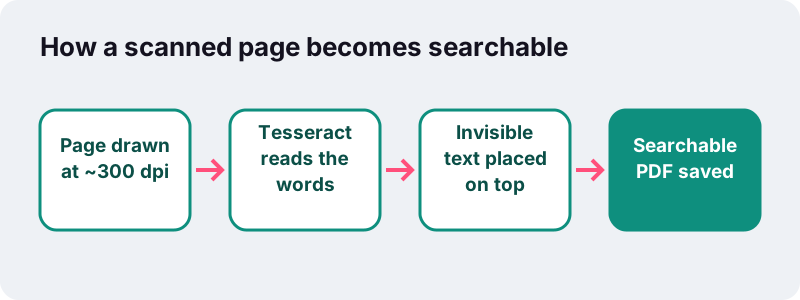
- Run OCR. Press Run OCR. Each page is drawn at about 300 dpi and read on your device.
- Download. Tap Download to save yourfile-ocr.pdf or yourfile.txt.
What does this OCR PDF tool do?
This OCR PDF tool recognises the printed words in a scanned PDF or a picture and adds them to the file as real text. The page keeps its exact look, but you can now search it, select a sentence and copy it. You can also export just the words as a .txt file.
OCR stands for optical character recognition. Wikipedia defines it as the conversion of images of typed, handwritten or printed text into machine-encoded text. Here, the recognition engine runs inside your browser, so the document itself is never sent to a server.
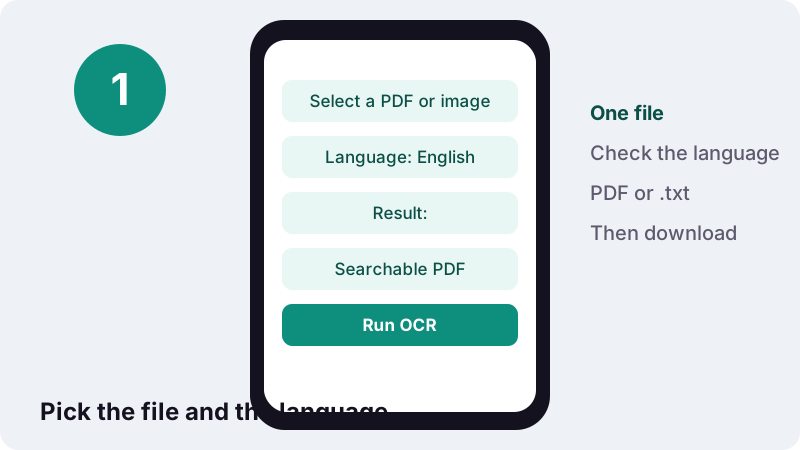
How do you OCR a PDF in four steps?
Choose the file, check the language, pick the result type and press Run OCR. The first run takes a little longer because the engine and the language data are downloaded once.
- Tap Select a PDF or image or drop one file onto the box. A scanned PDF, a JPG, a PNG or a WebP photo all work.
- Under Language of the text, check the language. It is preselected from the language of this page, so English here.
- Under Result, keep Searchable PDF or choose Plain text (.txt).
- Press Run OCR. A progress line shows each page being read. Then tap Download to save
yourfile-ocr.pdforyourfile.txt.
When it finishes, the result line tells you how many words were recognised on how many pages. If it says no text was recognised, check the language and the scan quality.
Does your PDF need OCR at all?
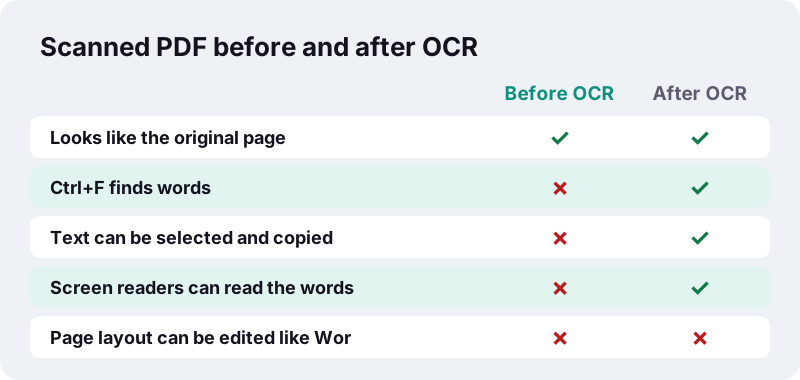
Only if its text is a picture. Open the PDF and try to select a word, or press Ctrl+F (Cmd+F on a Mac) and search for a word you can see. If nothing highlights, the page is an image, and running OCR PDF here will help. If the text selects normally, the file already has a text layer.
The Library of Congress format description of PDF explains why scans behave this way:
“PDF can also be used to create documents from scanned page images; such files do not necessarily support indexing of the document text.”
| Where the PDF came from | Has real text? | Run OCR? |
|---|---|---|
| Saved or exported from Word, a browser or an accounting app | Usually yes | No |
| Scanner or office copier | Often no | Yes |
| Phone photos turned into a PDF | No | Yes |
| Fax received as PDF | No | Yes |
| Pages that were redacted or compressed into images | No, on those pages | Yes, if you need the remaining words |
Searchable PDF or plain text: which result should you pick?
Pick Searchable PDF when you want to keep the document as it is and simply be able to find and copy words in it. Pick Plain text (.txt) when you only need the words, for example to paste them into an email, a note or another program.
| Searchable PDF | Plain text (.txt) | |
|---|---|---|
| What you get | The original pages plus an invisible text layer | Only the recognised words |
| File name | yourfile-ocr.pdf | yourfile.txt |
| Looks like the original | Yes, page for page | No, text only |
| Search with Ctrl+F | Yes | Yes, in any text editor |
| Multi-page files | Same number of pages | Pages separated by --- 1 ---, --- 2 --- markers |
| Good next step | PDF to Word or PDF to Markdown | Paste into notes, mail or a spreadsheet |
What does make PDF searchable actually mean?
It means a PDF reader can match what you type against words stored in the file. A scan stores only pixels. After OCR, each recognised word is also stored as text at the position where it appears, drawn fully transparent, so your reader can highlight it while you still see the original ink.
How does OCR add an invisible text layer?
Each word is written onto the page with zero opacity, sized and placed to match the box where the engine found it. The picture underneath is untouched, so the page looks identical, but selecting text now selects these hidden words.
This is a long-established way to deliver OCR output. The Wikipedia article on optical character recognition describes it:
“The output stream may be a plain text stream or file of characters, but more sophisticated OCR systems can preserve the original layout of the page and produce, for example, an annotated PDF that includes both the original image of the page and a searchable textual representation.”
Two details keep the layer clean. Words the engine is very unsure about are left out rather than added as noise. And the hidden text uses an embedded Unicode font, with an Arabic font for Arabic, so accented letters and non-Latin scripts are stored correctly.
Which languages can this OCR PDF tool read?
Eleven: English, French, Spanish, Portuguese, German, Italian, Russian, Arabic, Indonesian, Turkish and Vietnamese. Choose the language of the text before running; the engine uses language-specific data, and the wrong choice lowers accuracy, especially for accents and non-Latin letters.
| Language | Script | Typical documents |
|---|---|---|
| English | Latin | Invoices, letters, contracts, manuals |
| French, Spanish, Portuguese, Italian | Latin with accents | Official letters, certificates, school papers |
| German | Latin with umlauts and ß | Forms, rental contracts, Bescheide |
| Turkish, Indonesian, Vietnamese | Latin with extra letters and tone marks | ID-related paperwork, receipts, notices |
| Russian | Cyrillic | Letters, statements, technical sheets |
| Arabic | Arabic, right to left | Certificates, letters, printed forms |
The engine behind this is Tesseract. Its Wikipedia article says that version 4, released in 2018, added an LSTM-based recognition engine and brought support to 116 languages. We offer the eleven languages the site itself is written in.
What if a page mixes two languages?
Choose the language most of the text is in. Words in another Latin-script language are usually still recognised, with more errors on their special letters. A page that mixes Arabic and English is best run twice, once per language, if both parts matter.
How accurate is OCR, and what lowers it?
Clean, printed text on a straight, well-lit page is read very well; faded, skewed, handwritten or low-resolution text is not. No OCR is perfect, so check names, numbers and amounts before relying on the result. That holds for every OCR PDF tool, this one included.
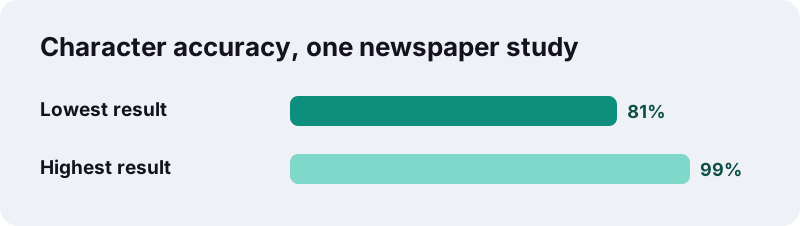
Wikipedia reports one study of 19th- and early 20th-century newspaper pages in which character-by-character accuracy of commercial OCR software varied from 81% to 99%. Old newsprint is a hard case, but the spread shows how much the source matters.
Tesseract is particularly sensitive to how the image is prepared. Its Wikipedia article is blunt about it, and goes on to say that text should be scaled up to an x-height of at least 20 pixels and that rotation or skew must be corrected:
“Tesseract's output will have very poor quality if the input images are not preprocessed to suit it”
That is why our tool draws every PDF page at about 300 dpi before reading it, which makes normal body text tall enough. Rotation is up to you: fix sideways pages first with Rotate PDF.
How can you make a PDF searchable when the scan is poor?
Improve the image before you OCR PDF scans. Most failures come from pages that are sideways, dark, blurred or covered in shadow, and each of these has a simple fix.
- Page sideways or upside down? Turn it upright with Rotate PDF first; recognition expects upright text.
- Phone photo with shadows? Rebuild the PDF with Scan to PDF and its Black and white filter, which whitens shaded paper.
- Grey, low-contrast copy? Use the Document filter in Scan to PDF to push the paper to white and the ink to black.
- Wide dark borders? Trim them with Crop PDF; dark edges can be mistaken for characters.
- Tiny text? Photograph closer or rescan at a higher resolution; small print is the hardest to read.
- Wrong language selected? Run again with the right one.
Google's help page on converting PDFs and photos to text gives similar advice for its own OCR: Use sharp images with even lighting and clear contrasts. It also suggests text at least 10 pixels high. The principles are the same whichever engine reads the page.
How long does OCR PDF processing take in the browser?
A few seconds per page on a normal computer, plus a one-time download of the engine and language data. In our tests, one English invoice page scanned at 200 dpi took 2.8 s and produced a 105 KB searchable PDF with 54 words, all read correctly.
Longer documents take roughly proportionally longer, and phones are slower than desktop computers. The progress line shows Recognising text on page 3 of 12 so you always know where it is.
The heavy work runs in a Web Worker, so the page stays responsive. MDN explains: Web Workers are a simple means for web content to run scripts in background threads. The worker thread can perform tasks without interfering with the user interface.
Why is the first run slower?
Because your browser first fetches the Tesseract engine, compiled to WebAssembly, and the data file for the language you picked. MDN describes WebAssembly as a format that brings near-native performance to the web. After that, the browser can reuse what it downloaded.
Is OCR in the browser private?
Yes, for your document. The PDF or photo is read by your browser from your own disk, the pages are drawn and recognised in memory, and the result is saved back to your device. The file is never sent to us or to anyone else.
Two things are downloaded, never uploaded: the recognition engine and the language data, from a public code CDN. They are the same for every visitor and carry nothing about your file.
Many online PDF services upload your file to their servers to OCR PDF files. For scanned passports, payslips, medical letters or signed contracts, keeping the work on your device is the safer default. The finished result line shows 0 bytes uploaded. See our privacy page for details.
What can't this OCR PDF tool do?
It reads printed text; it does not rebuild documents. Know these limits before you start, so the result matches what you need.
- Handwriting. Printed text is the target. Neat block capitals may partly work; cursive generally will not. Wikipedia lists handwriting recognition as a separate technique, intelligent character recognition.
- Layout. Tables, columns and fonts are not rebuilt. The searchable PDF keeps the look because the original image stays; the .txt file holds text in reading order as the engine found it.
- One file at a time. Merge several scans first with Merge PDF if you want one searchable document.
- Password-protected files. Remove the password first with Unlock PDF, if you have the right to.
- Languages outside the list of eleven. Chinese, Japanese, Hindi and others are not offered yet.
The file size also grows, because text and a font are added to the pages. If that matters, try Compress PDF afterwards, but avoid the levels that re-draw pages as images: they would remove the new text layer again.
When is it worth running OCR on a PDF?
Whenever you will need to find, quote or reuse words from a scanned document. A one-minute OCR PDF pass saves retyping and makes archives searchable years later.
- Contracts and leases: jump to the termination clause with Ctrl+F instead of scrolling twenty pages.
- Invoices and receipts: copy invoice numbers and amounts into a spreadsheet without typos.
- Course notes and old handouts: search a whole term's printed material by keyword.
- Letters from an office: copy a reference number straight into an online form.
- Accessibility: screen readers can read a page aloud only when it contains text.
- AI and note tools: text, not pictures, is what you can paste into them; export to Markdown after OCR.
OCR has become an everyday feature. Microsoft's support pages, for instance, describe how OneNote can copy text from a picture or a file printout so you can paste and change the words. This page brings the same idea to any PDF, without installing anything.
The Library of Congress lists searchable text among the features of high-quality PDFs in its recommended formats statement. Adding a text layer to your own scans moves them in that direction.
What can you do with the searchable PDF next?
Turn it into an editable document, extract its tables, or hide sensitive details. Each of these tools works better once OCR PDF has given the pages real text.
- PDF to Word to edit the wording in a .docx file.
- PDF to Excel to move recognised figures into a spreadsheet.
- PDF to Markdown for notes apps, documentation and AI tools.
- Redact PDF to black out names with Mark all, which needs findable text.
- Compare PDF to spot changes between two versions of a scanned contract.
Frequently asked questions
How do I OCR a PDF for free?
Open this page, tap Select a PDF or image, check the Language of the text, keep Searchable PDF and press Run OCR. Download the -ocr.pdf file when it is done. There is no account, no watermark and no upload.
How do I make a PDF searchable?
Run it through OCR PDF with the Searchable PDF result. The tool recognises the words and places them as invisible text over each page, so Ctrl+F and copy-paste work while the page looks the same.
Can I OCR a photo or a JPG, not just a PDF?
Yes. JPG, PNG, WebP, GIF and BMP images are accepted. With Searchable PDF you get a one-page PDF of the picture with a text layer; with Plain text you get only the words.
Which languages are supported?
English, French, Spanish, Portuguese, German, Italian, Russian, Arabic, Indonesian, Turkish and Vietnamese. The language matching this page is preselected; change it to match your document.
Does OCR change how my PDF looks?
No. The original page image is kept and the recognised text is added invisibly on top. The file grows somewhat because of the added text and embedded font.
Can it read handwriting?
Not reliably. The engine is built for printed text. Neat block capitals may partly work, but cursive handwriting usually will not be recognised.
Is my file uploaded for OCR?
No. Your file is read and recognised in your browser. Only the OCR engine and the language data are downloaded, once, from a public CDN; nothing about your document is sent.
Why does the result say no text was recognised?
Usually the wrong language is selected, the page is sideways, or the image is too dark or blurred. Fix the orientation with Rotate PDF, clean up photos with Scan to PDF, then run OCR again.
Can I edit the text after OCR?
You can select, copy and search it. To change the wording, convert the searchable PDF with PDF to Word and edit the .docx file.
Is ilovepdfe the same as iLovePDF?
No. ilovepdfe is an independent site and is not affiliated with iLovePDF, which is a separate company. The practical difference is that ilovepdfe processes your files in your browser instead of uploading them.
Sources
- Optical character recognition — Wikipedia
- Tesseract (software) — Wikipedia
- PDF (Portable Document Format) Family — Library of Congress
- Convert PDF and photo files to text — Google Drive Help
- Copy text from pictures and file printouts using OCR in OneNote — Microsoft Support
- Using Web Workers — MDN Web Docs
- WebAssembly — MDN Web Docs
- Using files from web applications — MDN Web Docs