How to convert Excel to PDF
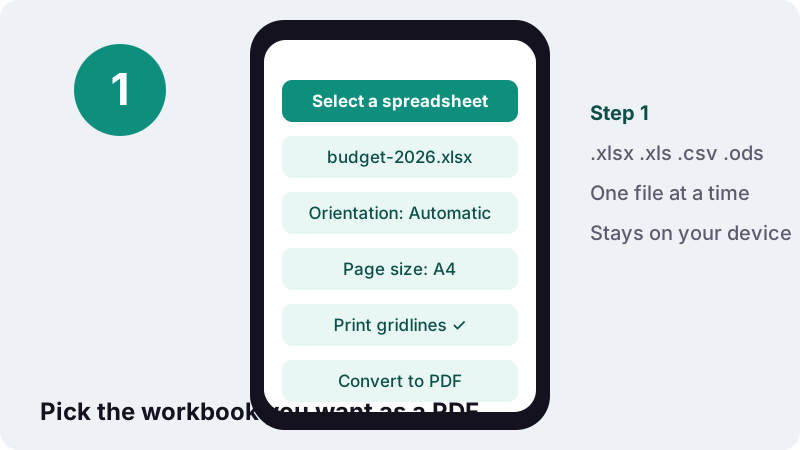
- Select a spreadsheet. Tap Select a spreadsheet and choose an .xlsx, .xls, .ods or .csv file, or drop it onto the box.
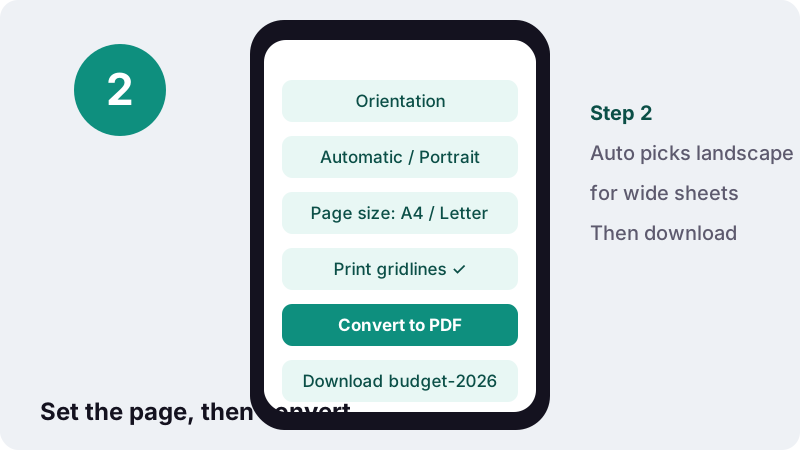
- Set the page options. Choose Orientation (Automatic, Portrait or Landscape), Page size (A4 or US Letter) and whether to Print gridlines.
- Convert to PDF. Press Convert to PDF. Your browser draws every sheet with data onto PDF pages on your device.
- Download. Tap the download button and open the PDF to check that wide sheets were split the way you expect.
Excel to PDF in four taps
To convert Excel to PDF here, tap Select a spreadsheet, pick an .xlsx, .xls, .csv or .ods file, check the three page options and press Convert to PDF. A PDF named after your workbook is ready to download a moment later.
Every sheet that contains data is included, one after the other, in the order of the tabs. Empty sheets are skipped, and on each sheet only the used area is drawn, so you do not get pages of blank cells after your last row.
You do not need Excel installed. The page loads a spreadsheet reader and a PDF writer into your browser, and they do the whole job on your phone or computer. There is no account, no watermark and no daily limit.
How do I convert an XLSX to PDF without Excel?
Open this page in any modern browser, choose the .xlsx file and press Convert to PDF. That is the whole XLSX to PDF process; the file is read by the browser itself, which is why it also works on a Chromebook, an Android phone or an iPad that has no office suite.
- Tap Select a spreadsheet, or drop the file onto the box on a computer.
- Leave Orientation on Automatic unless you know you want Portrait or Landscape.
- Pick Page size: A4 (210 × 297 mm) or US Letter (8.5 × 11 in).
- Keep Print gridlines ticked for a grid around each cell, or untick it for a clean report look.
- Press Convert to PDF, then tap the download button and open the file once to check it.
The same steps work for older .xls workbooks, LibreOffice .ods files and plain .csv exports from banking or accounting software. Only one file is converted per run; to join several results, use Merge PDF afterwards.
Which spreadsheet files can I turn into a PDF?
Four formats are accepted: the current Excel workbook (.xlsx), the older binary workbook (.xls), OpenDocument spreadsheets (.ods) and comma-separated text (.csv). Microsoft's own list of formats describes .xls as the Excel 97–2003 binary format and .ods as the OpenDocument Spreadsheet format used by other spreadsheet applications.
| File type | Where it usually comes from | What to expect in the PDF |
|---|---|---|
| .xlsx | Excel 2007 and later, Google Sheets downloads | All sheets with data, widths, heights, merges, bold |
| .xls | Excel 97–2003 and older office software | Same as .xlsx when the file opens normally |
| .ods | LibreOffice Calc, OpenOffice | All sheets with data; styling is simplified |
| .csv | Bank statements, CRM and shop exports | One sheet, default widths, no formatting |
A CSV file is only text. The Library of Congress describes CSV as a flat file of rows and comma-separated fields, so there are no widths, fonts or sheets to carry over. Expect a plain grid; if a column looks cut off, widen it in a spreadsheet app and save as .xlsx first.
What does a workbook look like inside?
An .xlsx file is a package of XML parts: one part per worksheet, plus shared styles and settings. The converter reads those parts, works out which cells hold values, and draws them as a table on PDF pages. The US Library of Congress, which keeps format descriptions for its collections, sums up the structure this way:
“Conceptually, using the terminology of the Spreadsheet ML specification in ISO/IEC 29500-1, the document comprises one or more worksheets in a workbook. A worksheet typically consists of a rectangular grid of cells.”
That grid is exactly what ends up on paper. Each cell's displayed text is placed in a box whose width and height come from the file, so a column you made wide in Excel is wide in the PDF too, and a row you made tall stays tall.
What happens to wide sheets when I convert Excel to PDF?
Wide sheets are first shrunk to fit the page width, but never below 60% of their real size. If the columns still do not fit at 60%, the remaining columns move to extra pages, and the pages are ordered “down, then over”, so every row of the first column band comes before the next band of columns.
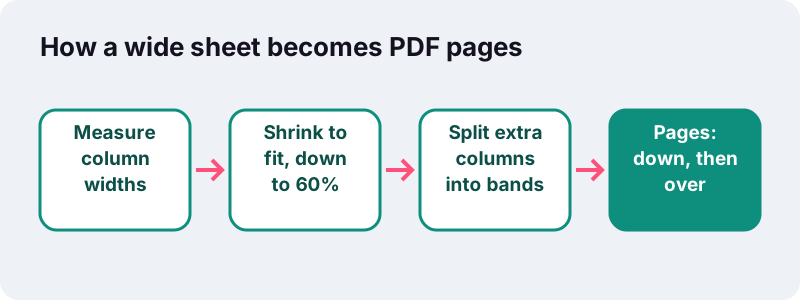
Excel offers both page orders in its Page Setup dialog. Microsoft's help page explains the default and the alternative:
“By default, Excel prints pages from the top down and then left to right on the worksheet. You can change the direction to print pages from left to right and then from the top down.”
This tool always uses the second order. Each page is labelled at the top with the sheet name, plus a marker such as “(1/2)” when a sheet is split into column bands, and every page carries a running number at the bottom. That makes a split table easy to reassemble on a desk.
Should I pick Automatic, Portrait or Landscape?
Leave it on Automatic in most cases. Automatic adds up the column widths of each sheet and switches that sheet to landscape when the columns would not fit across a portrait page; narrow sheets stay portrait. Different sheets in the same workbook can therefore end up in different orientations.
| Setting | What it does | Good for |
|---|---|---|
| Automatic | Portrait for narrow sheets, landscape for wide ones, decided sheet by sheet | Mixed workbooks, quick sharing |
| Portrait | Every page upright | Lists, invoices, sign-up sheets, anything long and narrow |
| Landscape | Every page sideways | Budgets with 12 month columns, timetables, dashboards |
Page size is a separate choice: A4 (210 × 297 mm) or US Letter (8.5 × 11 in). Pick the paper your reader will actually print on. A page laid out for one size and printed on the other has to be scaled or cropped, which shrinks small spreadsheet text even further.
What is kept and what is lost in the PDF?
The content and the grid are kept; most of the decoration is not. The PDF shows each cell's value as Excel displays it, at the widths and heights stored in the file, with merged cells, bold cells and the original alignment rules. Colours, charts and pictures are not drawn.
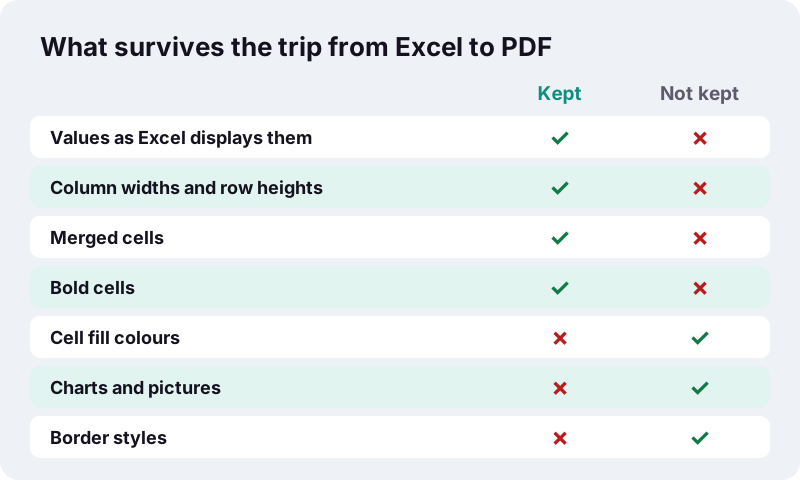
- Kept: values with their number formats (dates, currencies, percentages as displayed), column widths, row heights, merged cells, bold text.
- Alignment: numbers sit on the right of their cell, text on the left, and merged headings are centred across the merge.
- Overflow: long text spills into empty cells on its right, as it does on screen in Excel. If the next cell is filled, the text is shortened with an ellipsis (…).
- Too-narrow numbers: a number that does not fit its column is shown as ###, so a wrong figure is never printed half-hidden.
- Hidden rows and columns: left out, as in a printout.
- Not kept: fill colours, font choices and colours, border styles, charts, images, comments, Excel headers and footers, print areas and page breaks set in Excel.
Formulas are not recalculated. The PDF shows the result that was saved with the file. If a workbook was generated by another program and never opened in a spreadsheet app, some formula cells may have no stored result; open and save it in Excel, Google Sheets or LibreOffice first.
Do gridlines print, and should I keep them?
Here they do by default: Print gridlines is ticked, so every drawn cell gets a thin grey border. That differs from Excel itself, where Microsoft notes the opposite default:
“By default, gridlines don't appear on a printed Microsoft Excel worksheet or workbook.”
Keep gridlines for data tables, price lists and anything people will read across a row with a finger. Untick the box for reports and cover sheets where you used the grid only for layout. Because custom border styles are not carried over, gridlines are also the simplest way to keep a table readable in the PDF.
How long does it take? Our measured test
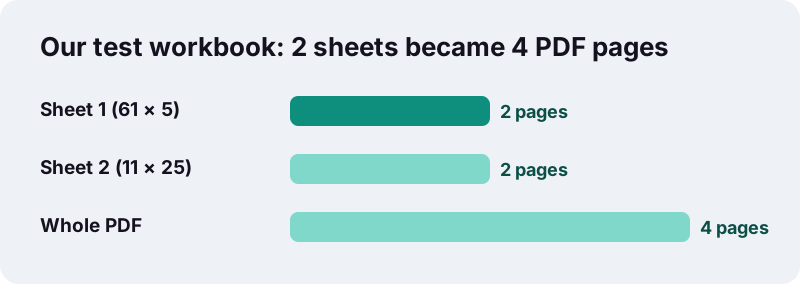
In our tests a two-sheet workbook converted in 0.4 seconds in headless Chrome on a Windows 10 PC. The first sheet had 61 rows and 5 columns, the second 11 rows and 25 columns; the result was a 4-page PDF in which the 25-column sheet was split into two page-wide bands.
| Input | Result | Time |
|---|---|---|
| .xlsx with 2 sheets (61 × 5 and 11 × 25 cells) | 4-page PDF; the 25-column sheet split into 2 page-wide bands | 0.4 s |
Bigger workbooks take longer because every cell is drawn one by one, and phones are slower than desktop computers. A sheet with tens of thousands of rows will produce hundreds of pages; for that kind of data, filter or summarise it in the spreadsheet before you convert.
Is it safe to convert a spreadsheet with salaries or customer data?
The file is read by your browser and is not sent to any server. When you pick a spreadsheet, the browser hands its bytes to the page's script, the PDF is assembled in the tab's memory, and the result is offered as a download. Our server only delivered the web page and the code libraries.
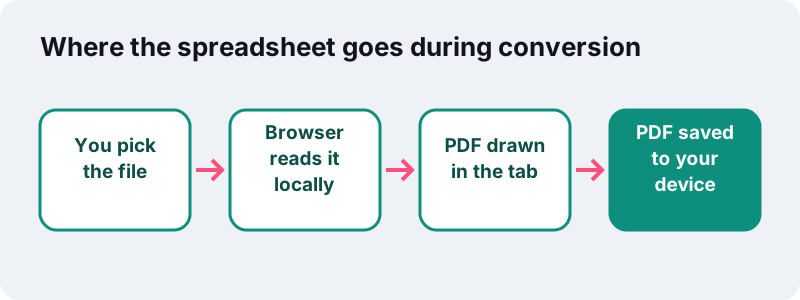
Mozilla's documentation for web developers describes the browser interface involved: the FileReader API lets web applications read files “stored on the user's computer” (MDN: FileReader). Many online PDF services upload your file to their servers to convert it; here that step does not exist.
That matters for payroll sheets, customer lists, grade books and budgets. Two habits still help: delete the downloaded PDF from shared computers, and if the PDF will travel by email, lock it with Protect PDF so only people with the password can open it.
Excel's own Save as PDF or this tool?
If you have desktop Excel, its built-in export gives the most faithful copy: colours, charts, headers and your own page breaks all come along. Use this tool when Excel is not installed, when you are on a phone, or when you just need a clean, readable table from a file someone sent you.
| Situation | Better choice | Why |
|---|---|---|
| Workbook with charts and colour coding | Excel's Save As PDF | Charts and fills are drawn only by Excel |
| Phone, tablet or borrowed PC without Office | This tool | Runs in the browser, nothing to install |
| CSV export you need to print or attach | This tool | Turns plain text into a paged table |
| Exact page breaks set in Page Layout | Excel's Save As PDF | This tool sets its own breaks |
| Quick PDF of every sheet in one go | Either | Both include every sheet with data |
Microsoft's help on saving to PDF also warns that internal links inside a spreadsheet are lost in conversion, and that a PDF alone does not stop a determined recipient from editing (Save or convert to PDF). Both points apply to any converter.
Tips for a cleaner XLSX to PDF result
Most layout problems are fixed in the spreadsheet in a minute, before you run Excel to PDF. The tool follows the widths and heights stored in the file, so changes you make there show up directly in the PDF.
- Delete stray cells far away. A forgotten value in cell Z400 stretches the used area and adds near-empty pages.
- Widen columns that show ###. Numbers never get shortened; they need room.
- Hide helper columns. Hidden columns and rows are skipped, which is handy for lookup tables you do not want printed.
- Put one table per sheet. A long table and a wide table side by side force the whole sheet into the wider layout.
- Use bold for headings. Bold survives the conversion, while fill colours do not.
- Split giant workbooks. Convert, then cut out the pages you need with Split PDF.
Arabic, Hebrew, Hindi and Thai cell text is shaped by the browser and placed as a small picture so the letters join correctly; other text, including Cyrillic and Vietnamese, stays real selectable text in a Noto Sans font.
What can I do with the PDF afterwards?
The PDF you get from Excel to PDF is a normal file, so the other tools on this site work on it straight away, still without uploading anything. Typical next steps for a converted spreadsheet are below.
- Join the sheet PDF with a cover letter or an invoice using Merge PDF.
- Number long reports with Add page numbers in the format “Page 1 of 10”.
- Shrink a big export for email with Compress PDF.
- Going the other way, pull a table out of a PDF into cells with PDF to Excel.
- For letters and reports written in Word, use Word to PDF.
Frequently asked questions
Is this Excel to PDF converter really free?
Yes. There is no account, no watermark and no limit on how many spreadsheets you convert. The work runs on your own device, so there is no server time for us to charge for.
Does it convert all sheets or only the active one?
All sheets that contain data, in tab order. Empty sheets are skipped. If you want only one sheet, convert the workbook and keep the pages you need with Split PDF, or copy that sheet into a new file first.
Why is my wide table split across two pages?
The tool shrinks wide sheets to fit, but never below 60% of their size so the text stays readable. Columns that still do not fit go on extra pages, ordered down, then over, and each page is labelled with the sheet name and band number.
Can I convert XLSX to PDF on an iPhone or Android phone?
Yes. Open this page in Safari or Chrome, tap Select a spreadsheet and choose the file from Files or Downloads. Large workbooks take longer on a phone than on a computer, because the phone's processor does the work.
Are formulas kept in the PDF?
A PDF shows results, not formulas. Each cell shows the value saved in the file, formatted the way the spreadsheet displays it. Formulas are not recalculated during conversion.
Why are my cell colours and charts missing?
This converter draws values, the grid, merged cells and bold text only. Fill colours, font colours, border styles, charts and pictures are not included. For a full-colour copy with charts, use the Save as PDF command inside desktop Excel.
Can I convert a CSV file to PDF?
Yes. A CSV becomes one paged table with standard column widths. Since CSV is plain text, there is no formatting to keep; widen columns in a spreadsheet app and save as .xlsx if you want control over the layout.
Is my spreadsheet uploaded anywhere?
No. Your browser reads the file locally and builds the PDF in the open tab. The page reports how long the job took and confirms that 0 bytes were uploaded.
What if my workbook is password-protected?
A workbook that needs a password to open cannot be read here and shows an error. Open it in your spreadsheet app with the password, save an unprotected copy, convert that, and protect the PDF afterwards if needed.
Is ilovepdfe the same as iLovePDF?
No. ilovepdfe is an independent site and is not affiliated with iLovePDF, which is a separate company. The practical difference is that ilovepdfe processes your files in your browser instead of uploading them.
Sources
- XLSX Transitional (Office Open XML), ISO 29500:2008-2016, ECMA-376 — Library of Congress
- CSV, Comma Separated Values (RFC 4180) — Library of Congress
- Set the printing order of worksheet pages — Microsoft Support
- Print gridlines in a worksheet — Microsoft Support
- Save a workbook in another file format — Microsoft Support
- Save or convert to PDF or XPS in Office desktop apps — Microsoft Support
- FileReader — MDN Web Docs (Mozilla)
- Office Open XML — Wikipedia